

Install the app
- Download WiFi Explorer Pro for Windows from the product page.
- Open the downloaded file and follow the instructions to install it. The same download works on x64, x86, and ARM64 PCs; Windows installs the version for your PC.
- Open WiFi Explorer Pro from the Start menu.
Start the trial or activate a license
The first time you open WiFi Explorer Pro for Windows, a free trial starts. Starting the trial needs an Internet connection, and all of the PC’s network adapters must be enabled. Each time you open the app during the trial, it shows how many days remain. Click Continue Trial, or Already Have a License? to activate a license. To activate a license at any time during the trial:- Choose File > Activate….
- Enter the license key from your purchase confirmation email and click Activate. To buy a license, go to the product page.
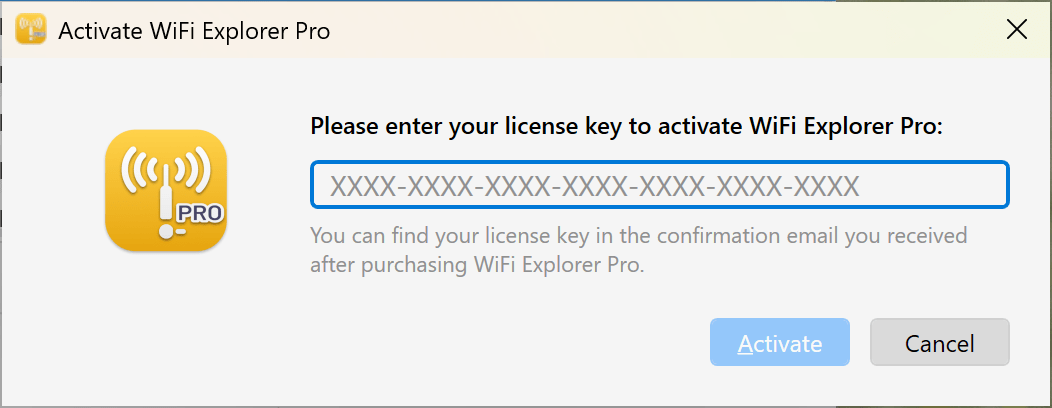
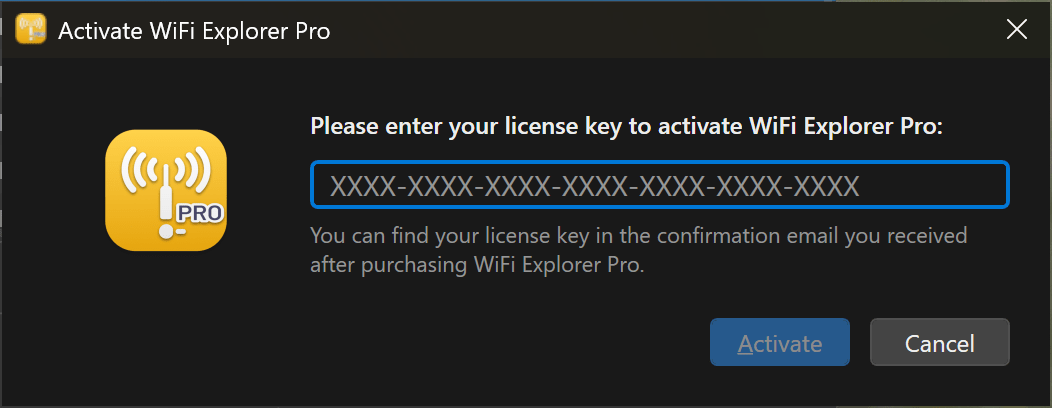
Enter the license key from your purchase confirmation email.
Move a license to another PC
- On the PC you no longer want to use, choose Help > Deactivate…, then click Deactivate.
- On the other PC, install WiFi Explorer Pro for Windows and activate it with your license key.
Allow location access
Windows shows apps the details of nearby Wi‑Fi networks, such as their BSSIDs, only if they have location access, because nearby networks can reveal where you are. This is a Windows privacy requirement. WiFi Explorer Pro for Windows never determines, saves, or shares your physical location. If location access is off, WiFi Explorer Pro for Windows shows Windows requires that WiFi Explorer Pro has location access to scan nearby Wi‑Fi networks. and closes when you click Quit.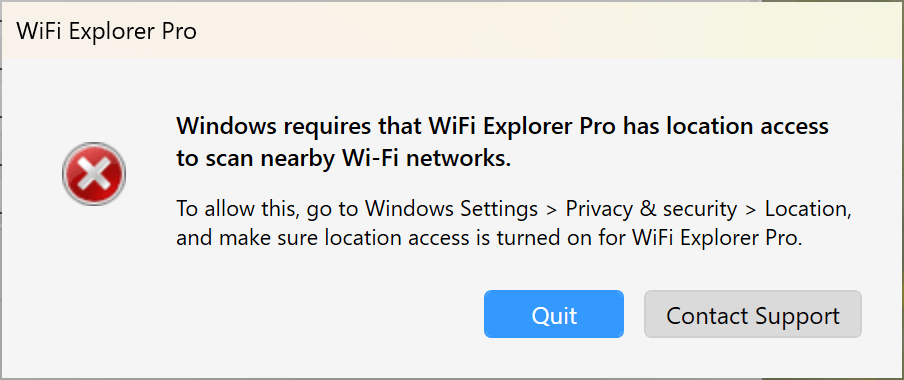
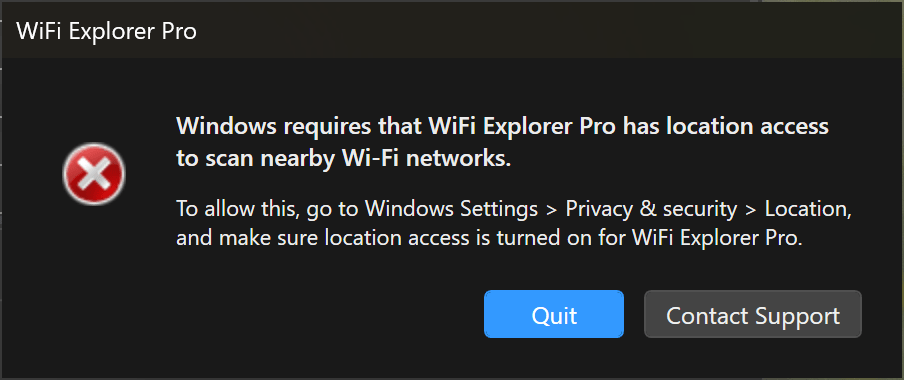
The alert shown when location access is off.
- Open Settings > Privacy & security > Location. On Windows 10, open Settings > Privacy > Location.
- Turn on Location services.
- Turn on Let apps access your location.
- Turn on WiFi Explorer Pro in the list of apps.
- Open WiFi Explorer Pro again.
On a PC managed by an organization, location access may be turned off by policy. Ask your administrator.