

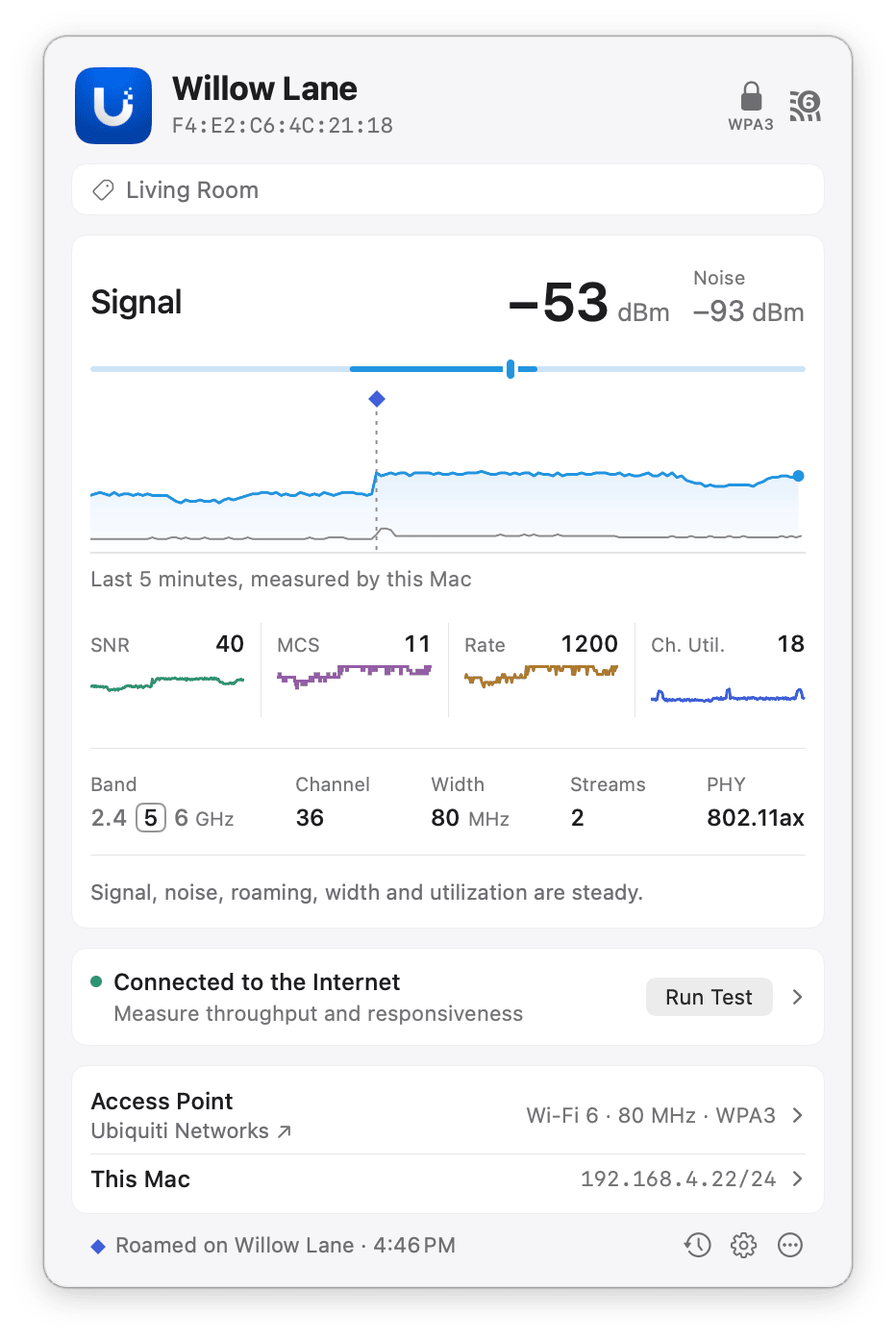
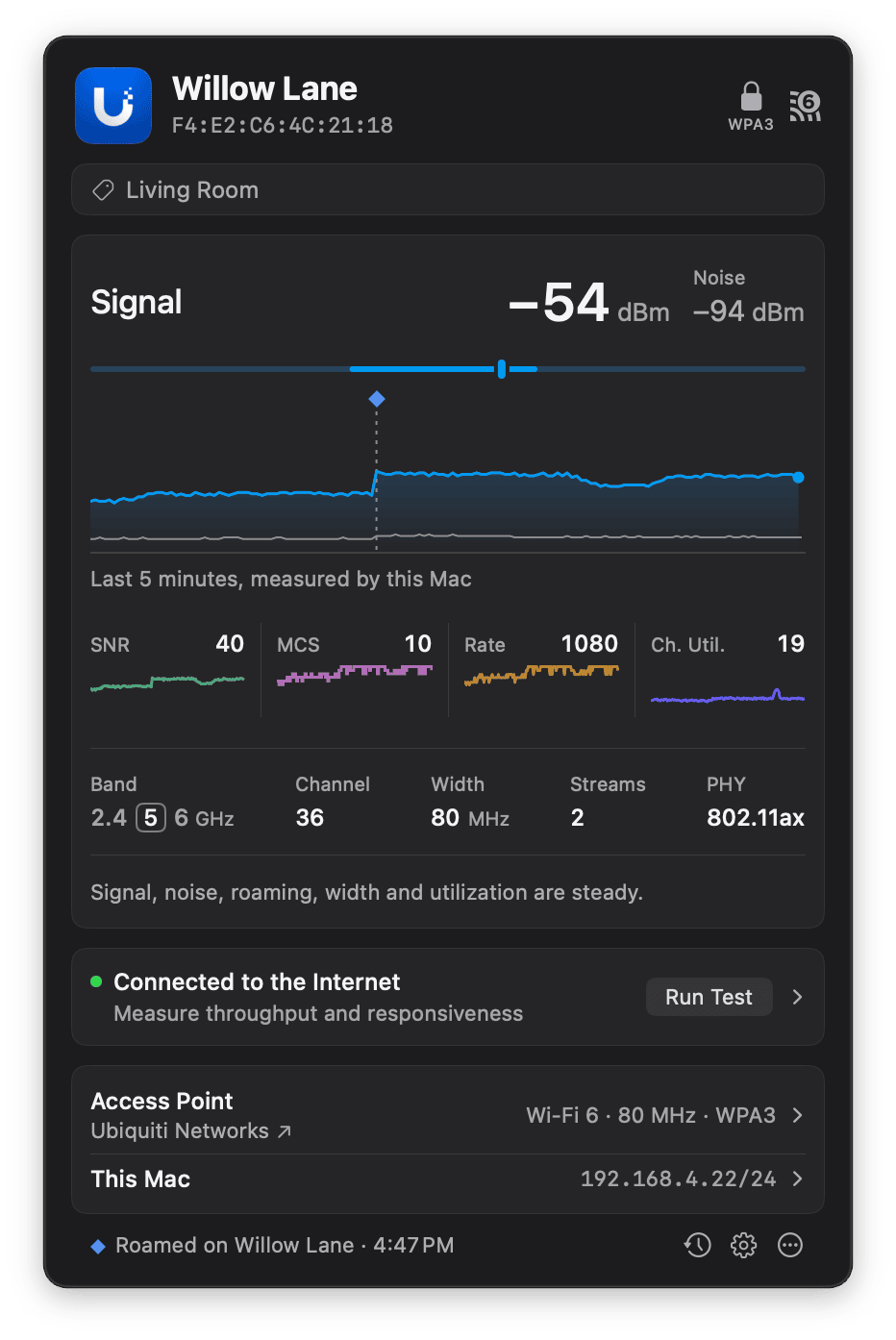
A good connection to Willow Lane, on the access point labeled Living Room.
Key features
- Live charts for signal strength and noise, signal-to-noise ratio (SNR), MCS index, transmit rate, and, with WiFi Signal Pro Extended Metrics, channel utilization
- Roams marked on the chart
- Detailed readout of the access point, the network, and your Mac’s Wi-Fi adapter
- A connection summary that points out signal drops, rising noise, repeated roaming, a busy channel, and other conditions worth your attention
- Internet connectivity checks that tell a Wi-Fi problem apart from an Internet problem
- An on-demand Internet test with download and upload throughput, idle latency, and a responsiveness rating under load
- Notifications for joins, disconnections, roams, access point channel changes, Internet outages, slower radio conditions, and sustained low signal strength or SNR
- 14 days of connection history, with a timeline for each day, event details, filters, search, and CSV export
- Labels to identify access points
- A fully customizable, two-line menu bar display with bold and italic styling
- A global keyboard shortcut to open the popover, and a popover you can detach and keep in front of other windows
Passive monitoring
WiFi Signal Pro monitors your current Wi-Fi connection without continuously scanning for nearby networks. This helps avoid interrupting calls, streaming, and other network activity. A brief directed scan may be needed to retrieve missing details about the network you are connected to.To check Internet connectivity, WiFi Signal Pro sends a small request over your connection every 30 seconds, with additional checks if it fails. This uses very little data. The optional Internet test runs only when you ask for it and generates traffic to measure throughput and responsiveness under load.
Get started
The first time you open WiFi Signal Pro, a welcome window shows where to find it in the menu bar.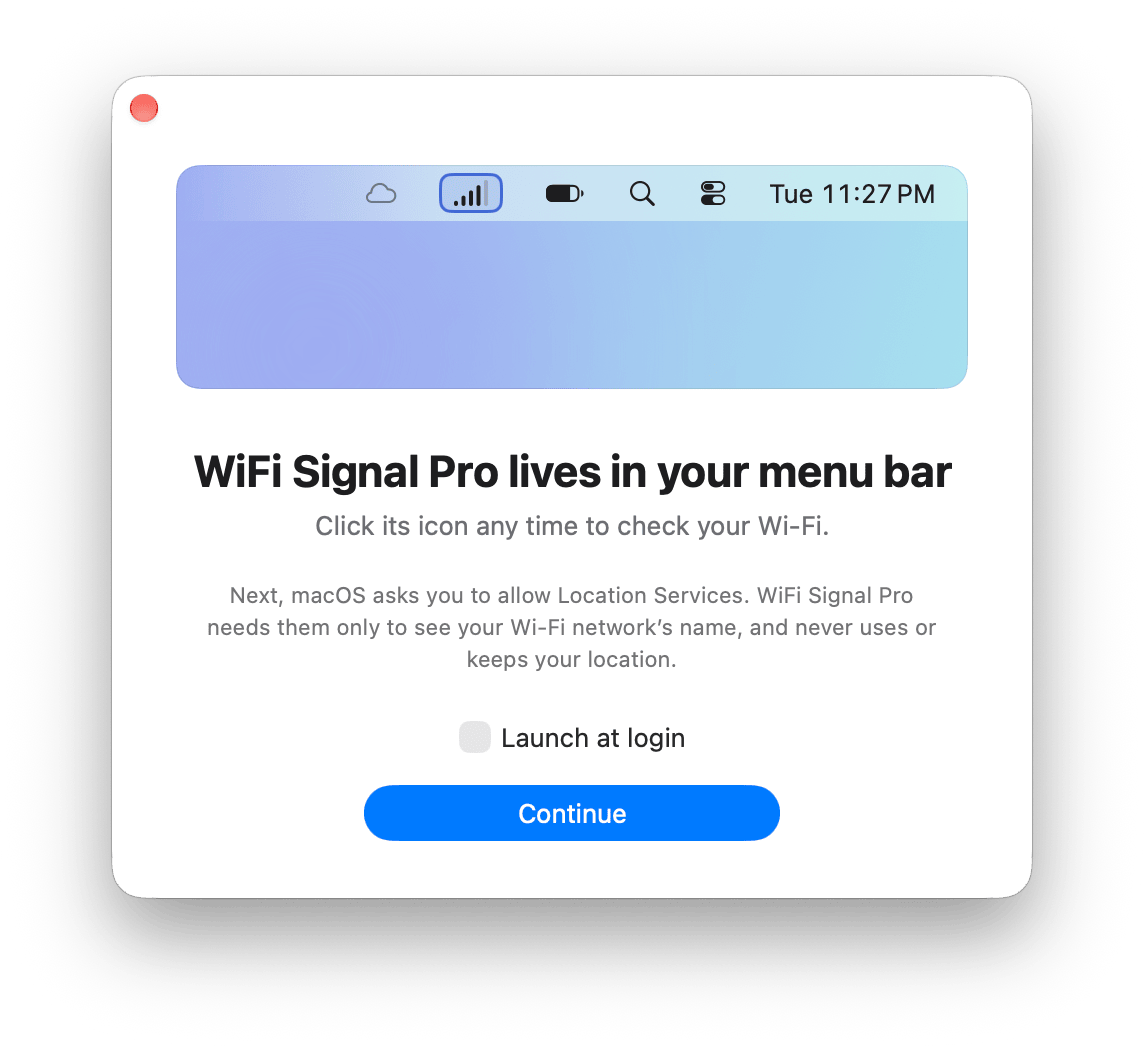
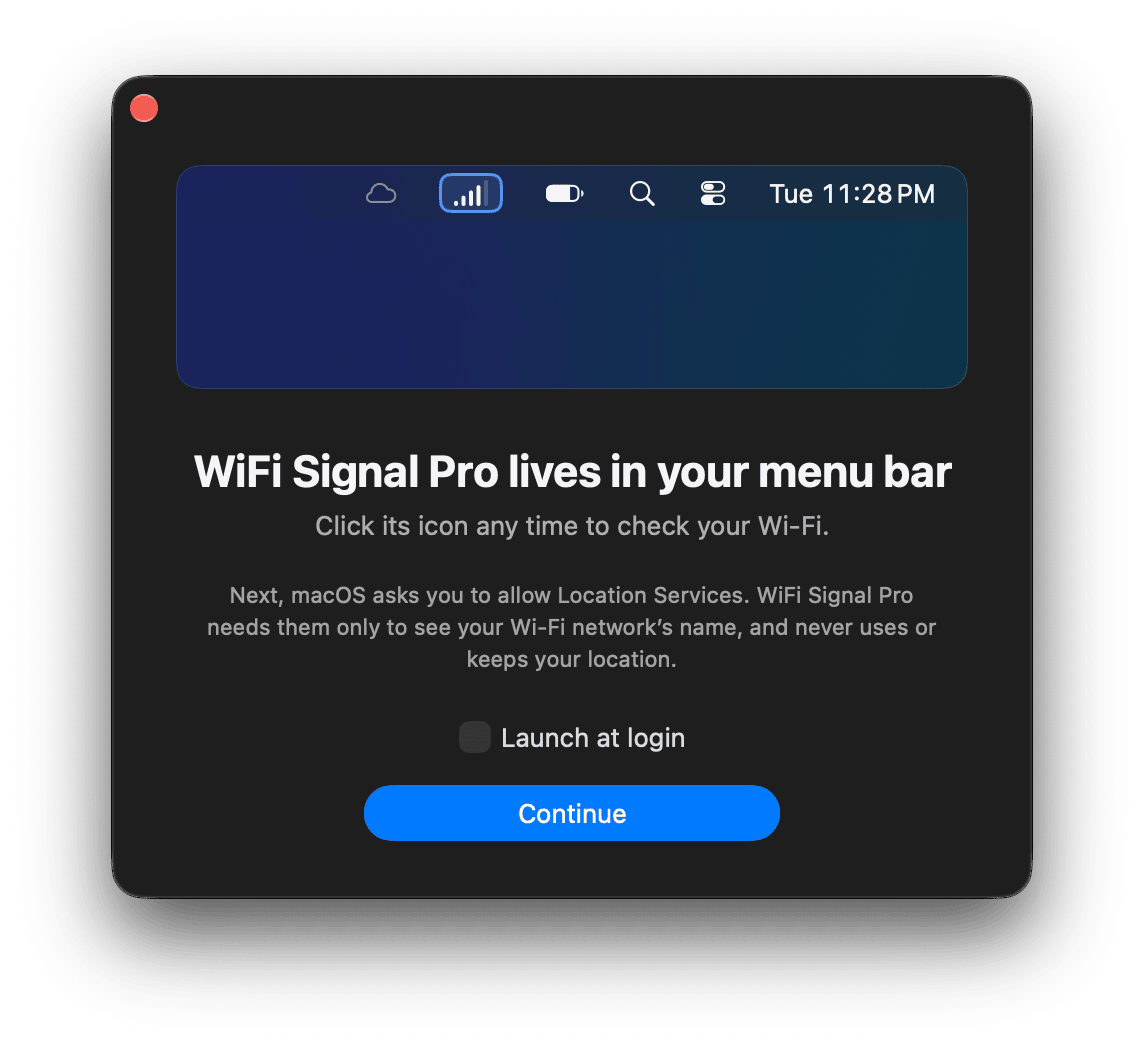
The welcome window points to the WiFi Signal Pro item in the menu bar.
- Open WiFi Signal Pro. Its item appears in the menu bar, and the welcome window opens.
- To open WiFi Signal Pro whenever you log in to your Mac, select Launch at login. You can change this later in General settings.
- Click Continue. When macOS asks, allow WiFi Signal Pro to use Location Services. macOS requires it for apps to read the network name (SSID) and BSSID, and WiFi Signal Pro starts monitoring only after you allow it. WiFi Signal Pro doesn’t use or keep your location.
- Click the WiFi Signal Pro item in the menu bar to open the popover.
If the menu bar is too crowded to show the WiFi Signal Pro item, macOS hides it. On macOS 26 and earlier, WiFi Signal Pro warns you. Remove other items from the menu bar or shorten the menu bar display to make room.
Popover menu
The buttons at the bottom right of the popover open History (clock with a circular arrow), Settings (gear icon), and a menu (ellipsis icon) with the following commands:
While the History window is open, the same commands are also in the WiFi Signal Pro, Window, and Help menus in the menu bar.
System requirements
- macOS 15 or later