

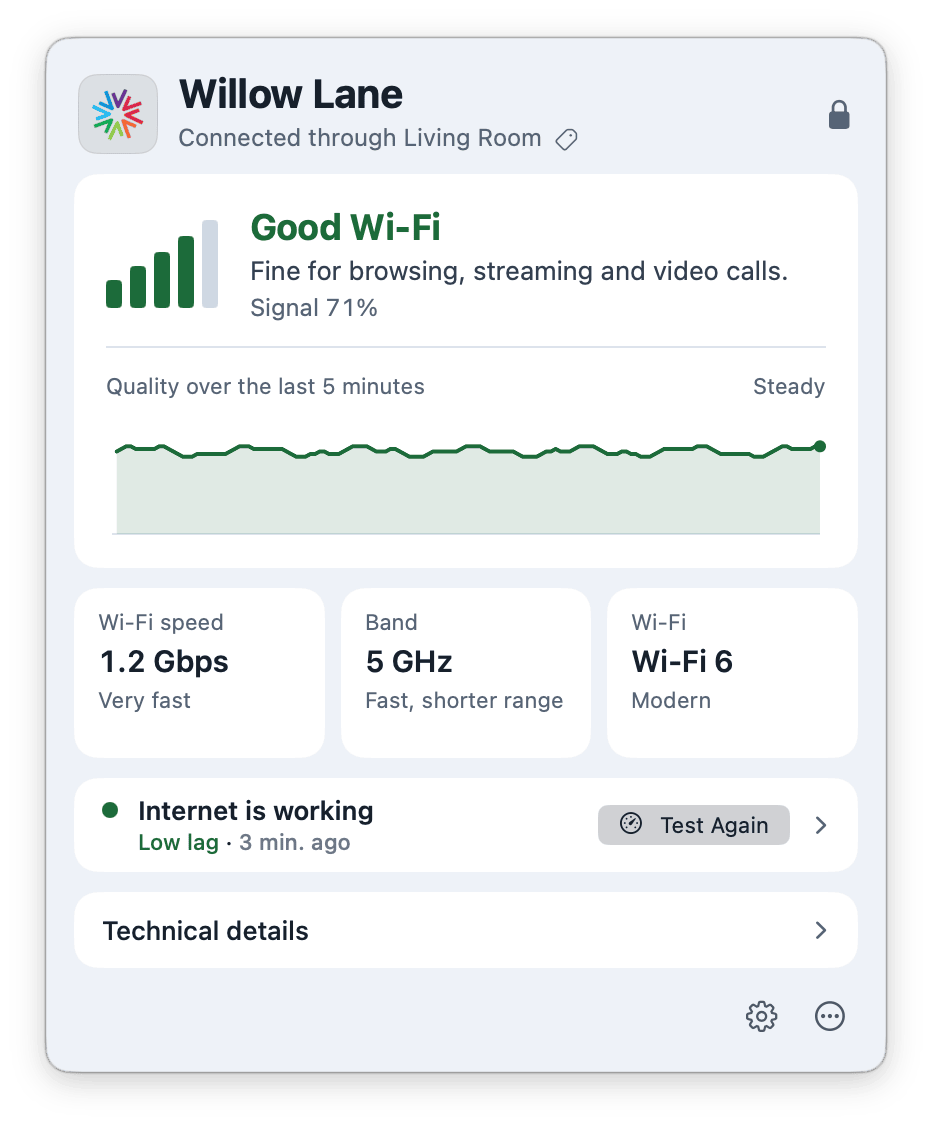
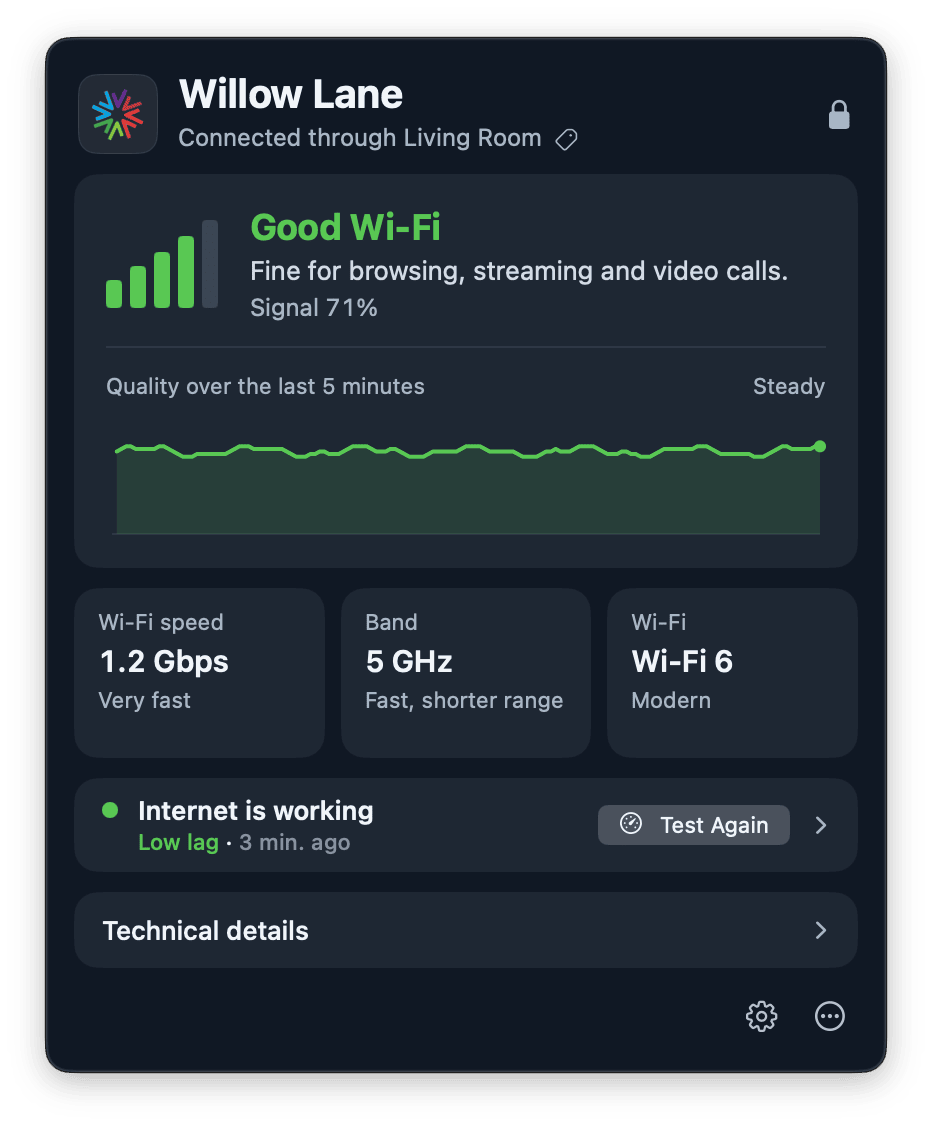
A good connection, with signal quality over the last 5 minutes and the Internet status below.
Key features
- A clear rating of your Wi‑Fi, from Excellent to Very weak, with a five-minute chart of how it has been
- Tips for weak signal, interference, and networks with weak or no security
- Internet checks that tell a Wi‑Fi problem apart from an Internet problem, with steps to try
- An Internet test that measures download and upload speed and lag while the connection is busy
- Notifications for joins, disconnections, access point changes, channel changes, Internet outages, and a signal or Wi‑Fi speed that stays low
- Labels to give your access points names you recognize, such as “Living Room”
- A customizable menu bar item with up to two lines of text, in bold or italic
- A popover you can detach and keep in front of other windows
Get started
The first time you open WiFi Signal, a welcome window shows where to find it in the menu bar.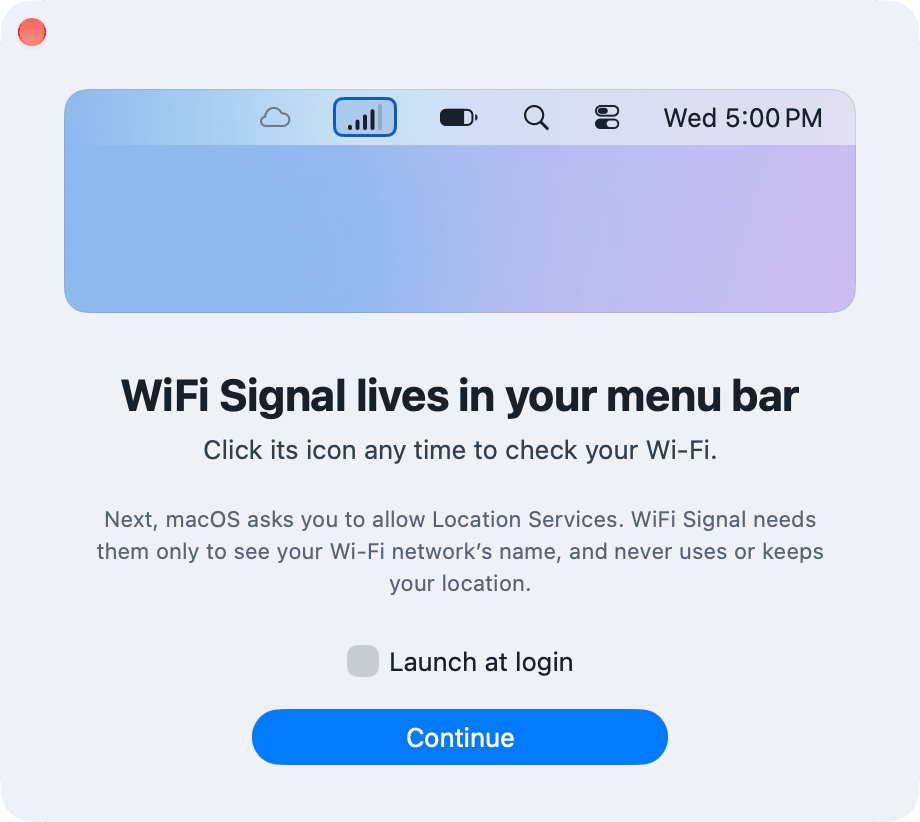
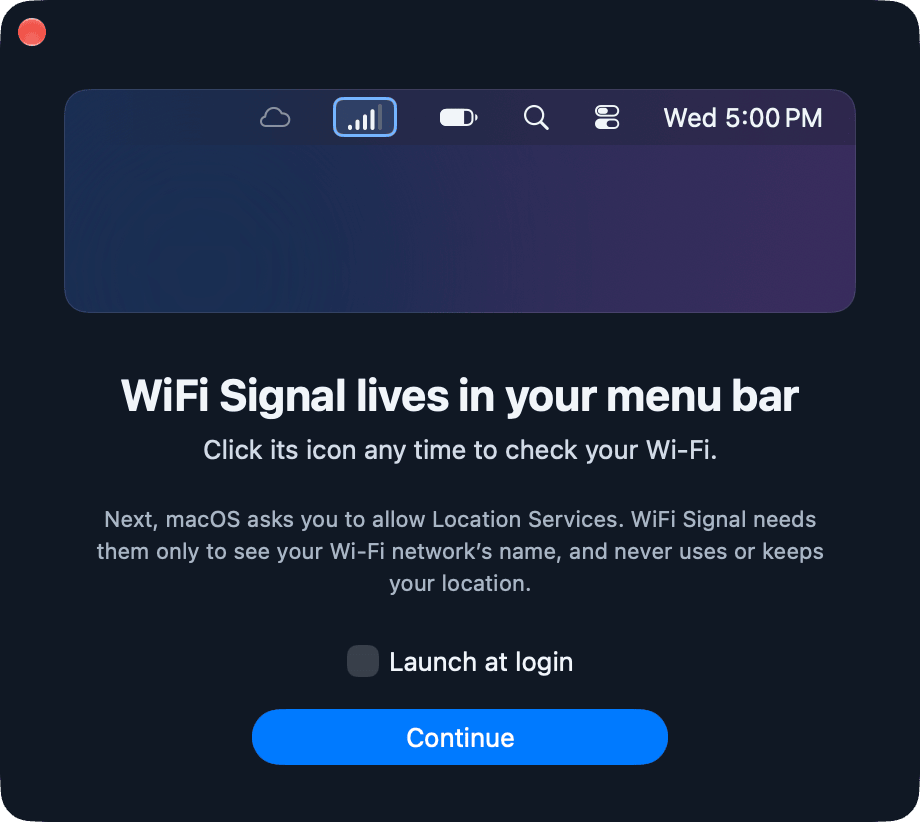
The welcome window points to the WiFi Signal item in the menu bar.
- Open WiFi Signal. Its item appears in the menu bar, and the welcome window opens.
- To open WiFi Signal whenever you log in to your Mac, select Launch at login. You can change this later in General settings.
- Click Continue. When macOS asks, allow WiFi Signal to use Location Services. macOS only tells apps which Wi‑Fi network you’re on if they’re allowed to use Location Services. WiFi Signal doesn’t use or keep your location.
- Click the WiFi Signal item in the menu bar to open the popover.
If the menu bar is too crowded to show the WiFi Signal item, macOS hides it. On macOS 26 and earlier, WiFi Signal warns you. Remove other items from the menu bar or show less text to make room.
Passive monitoring
WiFi Signal reads your current Wi‑Fi connection every two seconds without scanning for nearby networks, so it doesn’t interrupt calls, streaming, or other activity. To check Internet access, it sends a small request over your connection from time to time, which uses very little data. The Internet test runs only when you ask for it.What WiFi Signal doesn’t do
WiFi Signal is about how your Wi‑Fi is doing right now. It doesn’t:- Keep a history. The chart covers the last 5 minutes, and nothing is saved after that. To look back at what happened to your connection hours or days ago, use WiFi Signal Pro.
- List or compare other networks nearby. Use WiFi Explorer for that.
- Check your Wi‑Fi while your Mac is asleep or while WiFi Signal isn’t running.
Popover buttons
The buttons at the bottom of the popover open Settings (gear icon) and a menu (ellipsis icon) with the following commands:System requirements
- macOS 15 or later