

When there’s a problem, a dot appears on the signal indicator in the menu bar, so you can see it without opening the popover.
When the Internet isn’t working
When the Internet isn’t working, a card at the top of the popover says what’s wrong and how long it has been happening. Under Things to try, it lists steps to take in order, such as reconnecting to your network, opening a website on another device, or restarting your router. The Wi‑Fi rating below the card tells you whether your Wi‑Fi is fine or may be part of the problem.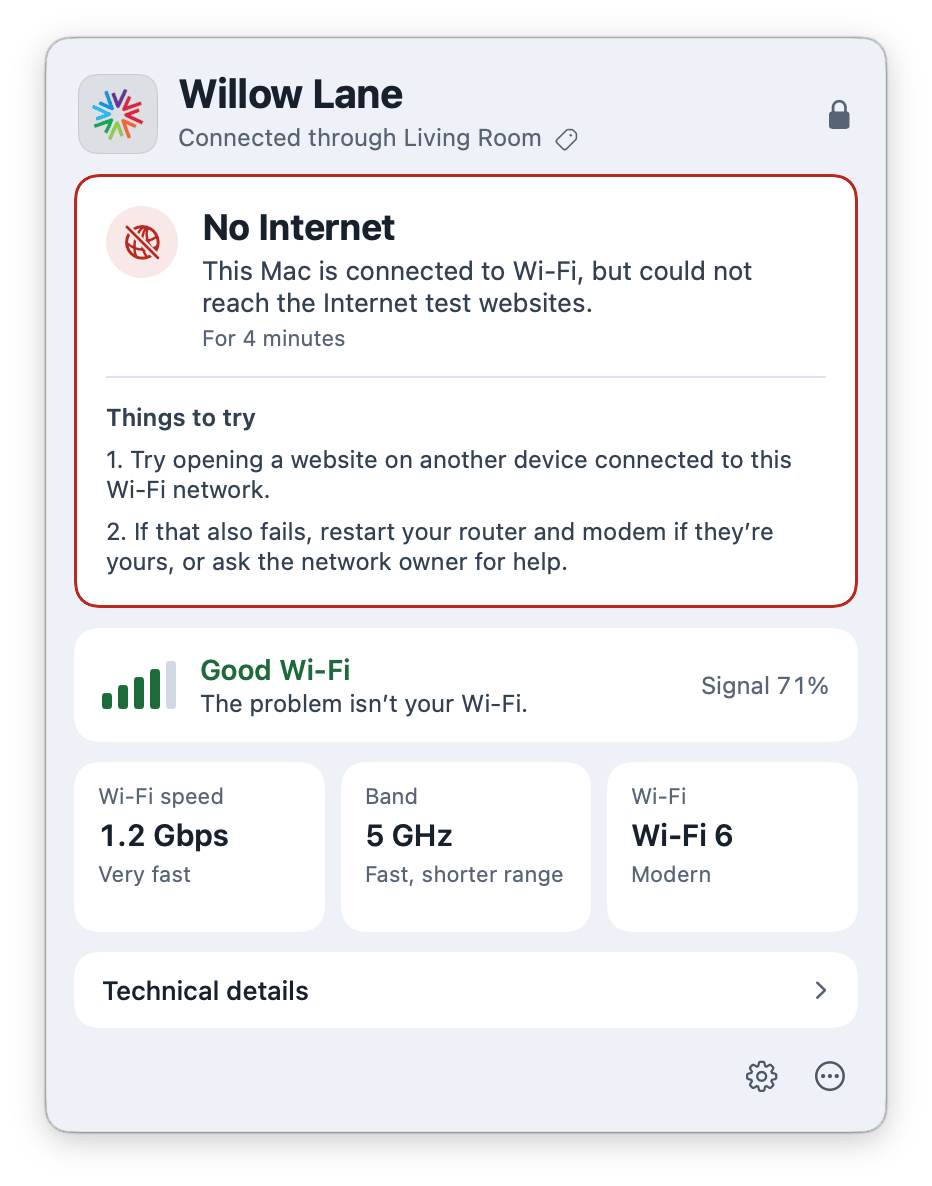
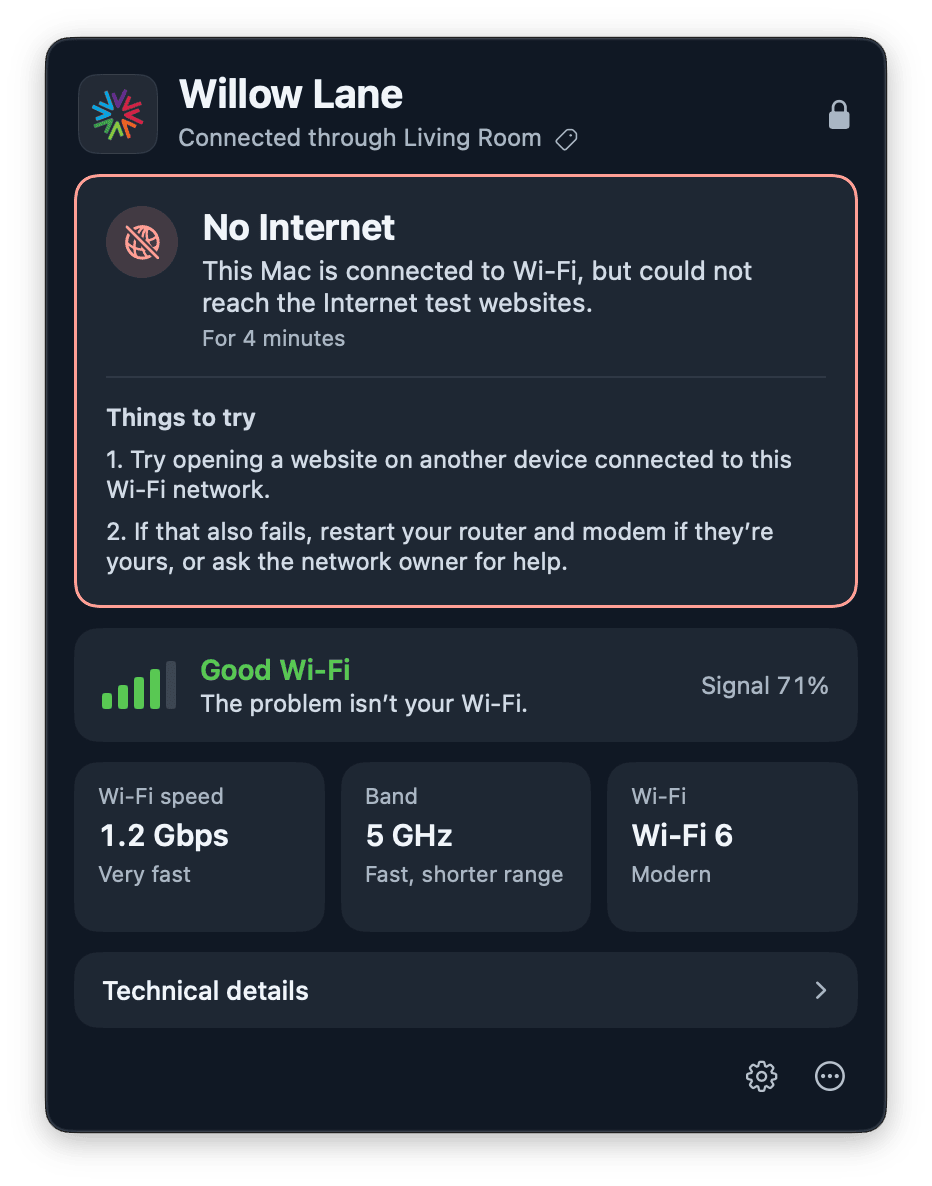
The Wi‑Fi is good, so the problem is with the Internet connection.
A single failed check isn’t reported as a problem: WiFi Signal checks again first, so a brief hiccup doesn’t raise an alarm.
Is it my Wi‑Fi or my Internet?
Look at the Wi‑Fi rating under the card. If it’s Good Wi‑Fi or Excellent Wi‑Fi, the card says the problem isn’t your Wi‑Fi, and the problem is most likely with the router, the Internet service, or something blocking the checks. If the rating is low too, start with your Wi‑Fi: a weak or noisy connection can make the Internet checks fail. See Monitor your Wi‑Fi. WiFi Signal can also notify you when the Internet stops working on your Wi‑Fi network, and again when it’s back. It waits until a problem persists, to avoid false alarms. This notification is on by default. See Notifications settings.Test speed and lag
The Internet test measures your download and upload speeds, and how much lag there is while the connection is busy. Lag is what makes video calls stutter and games feel slow, even on a fast connection.- Click the WiFi Signal item in the menu bar.
- In the Internet row, click Test. The button is available while the Internet is working.
- Wait while the test measures latency, then download, then upload. To cancel the test, click Stop Test.
Read the results
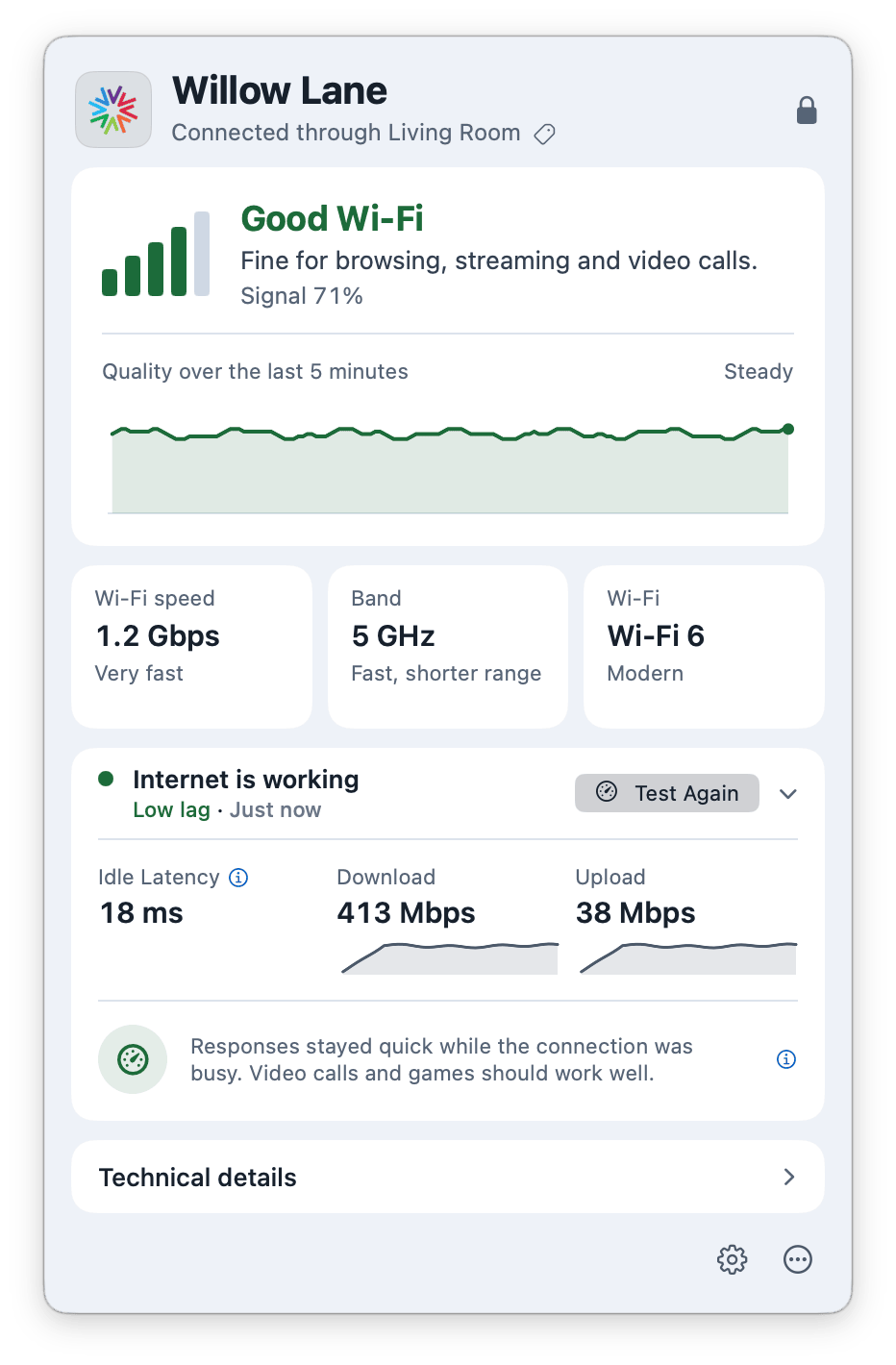
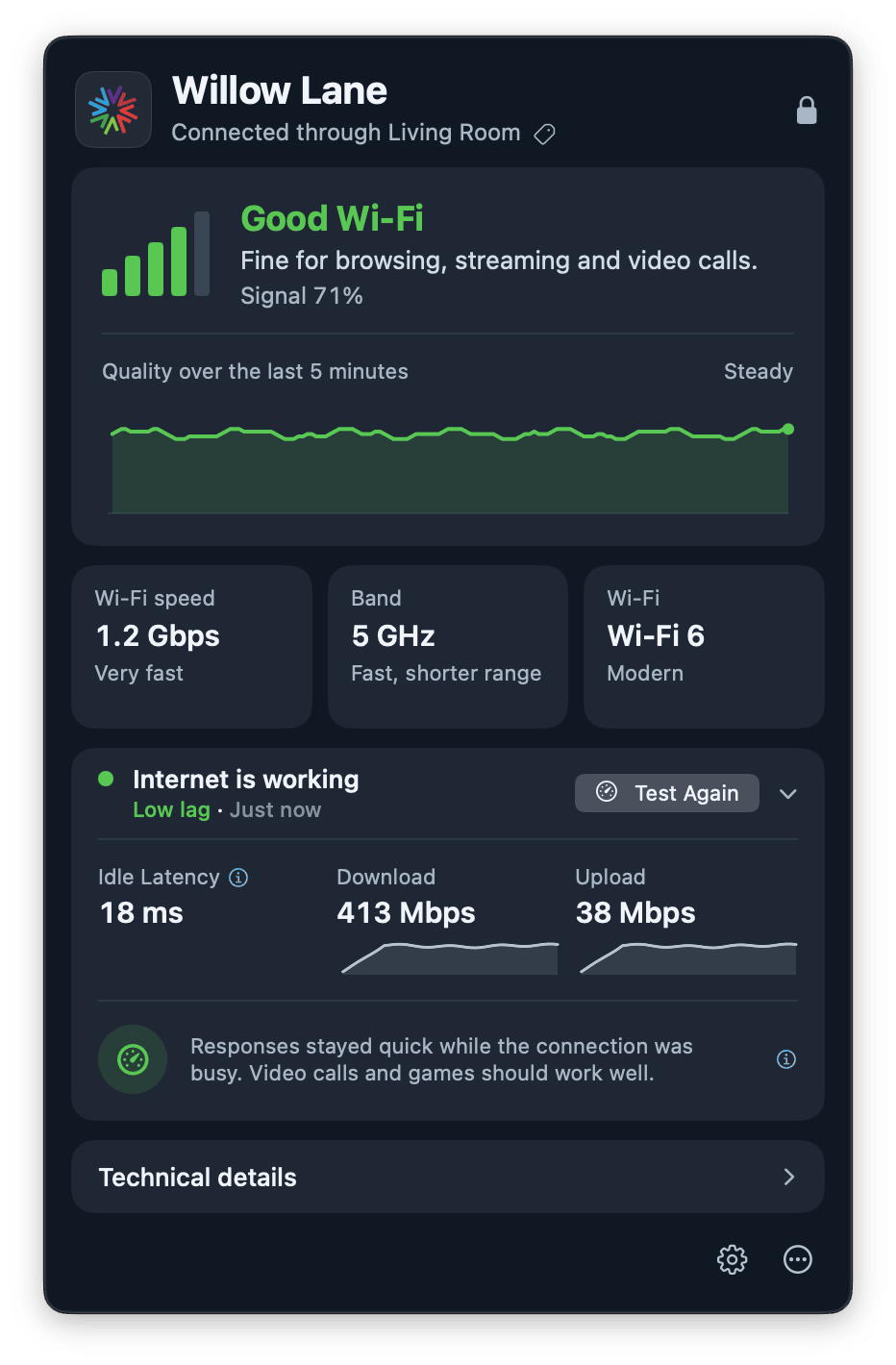
Test results with low lag, plus charts of the download and upload transfers.
Click the info button beside the rating to see the measurement it’s based on, in round trips per minute (RPM): how many times the connection could send a request and get an answer in a minute while it was busy. Higher RPM means less lag. The rating uses whichever was worse, the download or the upload.
Results change from one test to the next, as other people and devices use the network and the Internet. If a result surprises you, run the test again. The test measures your connection to one test server, so it can’t tell whether every website or service is fast.
Download and upload speeds are your Internet speed, which is different from the Wi‑Fi speed tile, the link rate between your Mac and the access point. A connection can be fast and still have high lag.
The Internet row shows the last rating and how long ago the test ran. Click Test Again to run another test. If the test finishes while the popover is closed, WiFi Signal sends a notification; click it to see the result.
If the test says Test incomplete, it couldn’t get a reliable measurement. Wait a moment, then try again.