

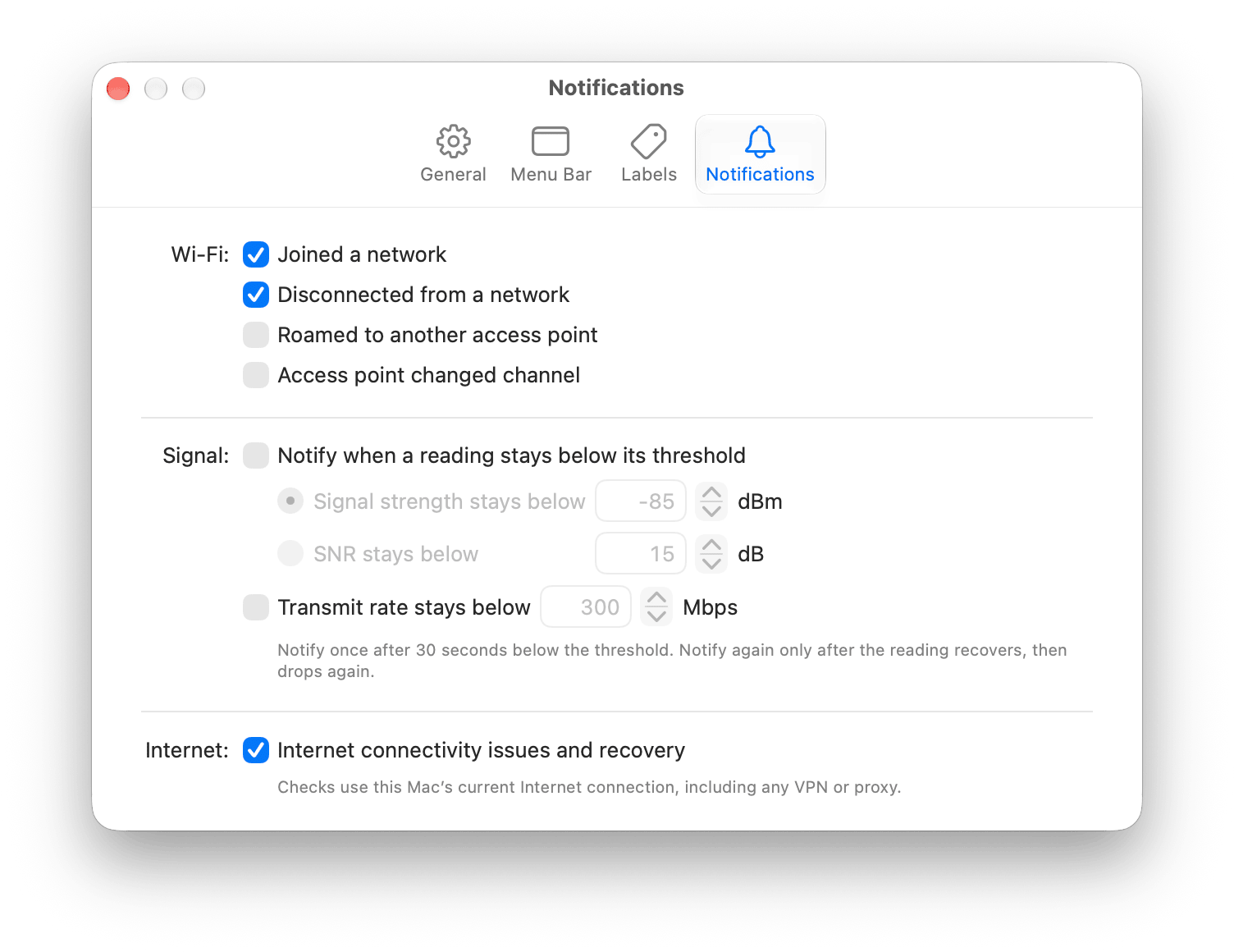
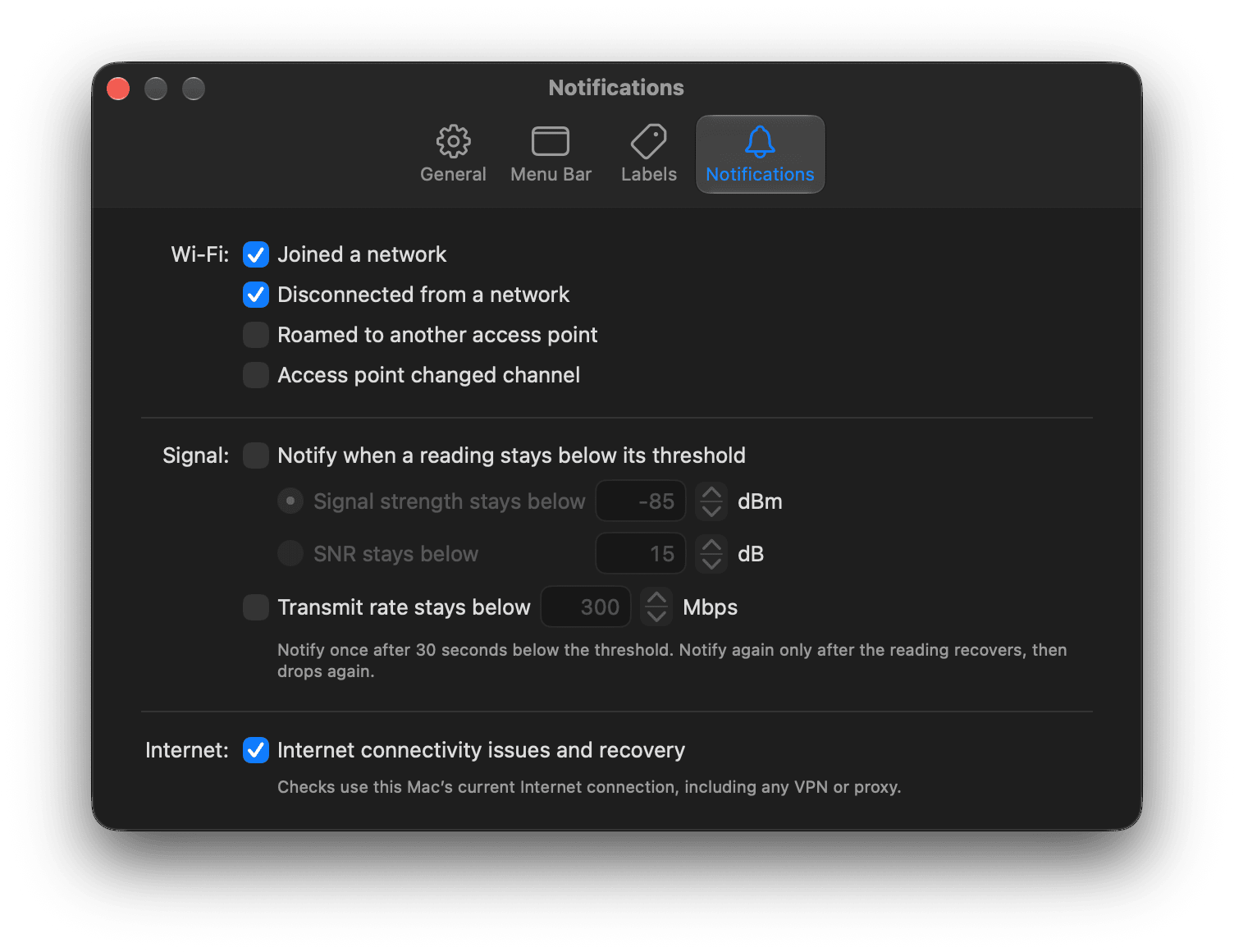
Notifications on for joining or disconnecting from a network and for Internet issues.
Wi‑Fi
Signal
Internet
Roams, channel changes, and the signal notifications are off by default.
A reading must stay below its threshold for 30 seconds before WiFi Signal notifies you. You’re notified once, and again only after the reading recovers and then drops again.
Notifications name the access point by its label when it has one. Click a notification to open the popover.
WiFi Signal doesn’t notify you about changes that happen while your Mac is asleep, or for a short time after it wakes up.
macOS asks for permission the first time WiFi Signal has something to tell you, or when you open this pane with a notification turned on. If notifications are turned off for WiFi Signal in System Settings, the pane says so; click Open Notification Settings… to turn them on.