

The rating
The large card rates your Wi‑Fi from one to five bars, with a sentence about what it’s good for. The same bars appear in the menu bar. The rating takes into account how strong the Wi‑Fi signal is compared to the background noise around it. Signal strength alone can be misleading, because a strong signal can still struggle against heavy interference.
Weak means the signal is too faint, for example because the access point is far away. Poor means the signal is strong enough but interference is getting in the way. The card also shows the signal strength, as a percentage or in dBm, depending on General settings.
Below the rating, a chart shows the quality over the last 5 minutes, with how it has been changing: Steady, Getting stronger, Getting weaker, or Unsteady. The trend appears once there are enough readings, a few seconds after you connect.
The rating describes the link between your Mac and the access point, as your Mac measures it. It doesn’t measure your Internet connection: for that, see Check your Internet connection.
Tips
When something needs your attention, a card appears with what’s happening and what you can try. Only one card appears at a time. An Internet problem comes first, then a network security warning, then a weak signal or interference. A card waits a few seconds before it appears or goes away, so it doesn’t flicker when a reading changes briefly.- Try moving closer to your access point appears when the signal is weak. Walls, floors, and large metal objects weaken Wi‑Fi. If the access point has a label, the card uses it, for example Try moving closer to Living Room.
- Moving closer won’t help much here appears when interference, rather than distance, is the problem. Neighbors’ Wi‑Fi, microwaves, and Bluetooth devices can all interfere.
- This network isn’t secured or This network’s security is weak appears when the network uses no security or an old kind of security. If it’s your network, the card explains what to change on your router. To hide the card for that network, click the close button on it. To see these warnings again, click Reset Warnings in General settings.
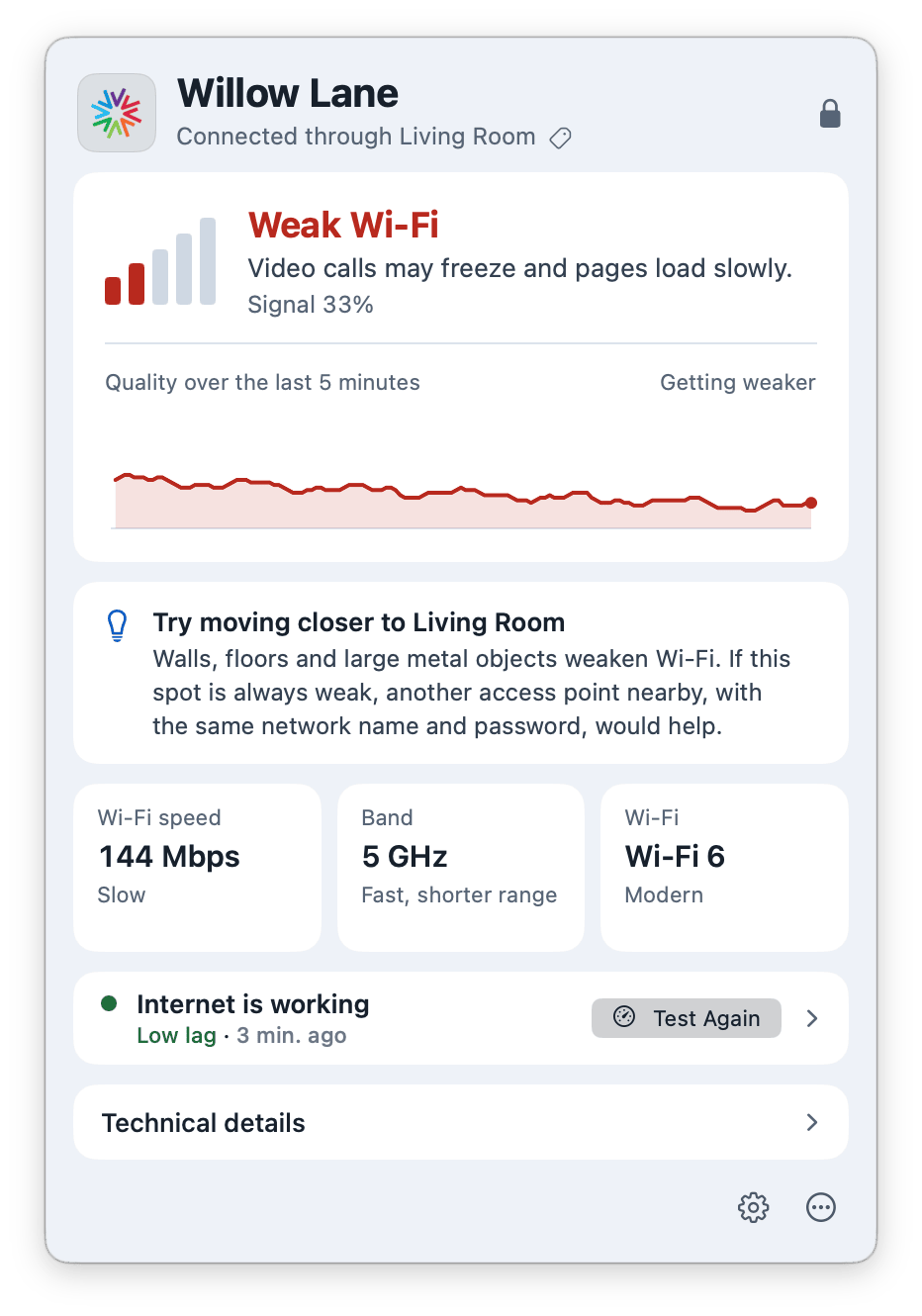
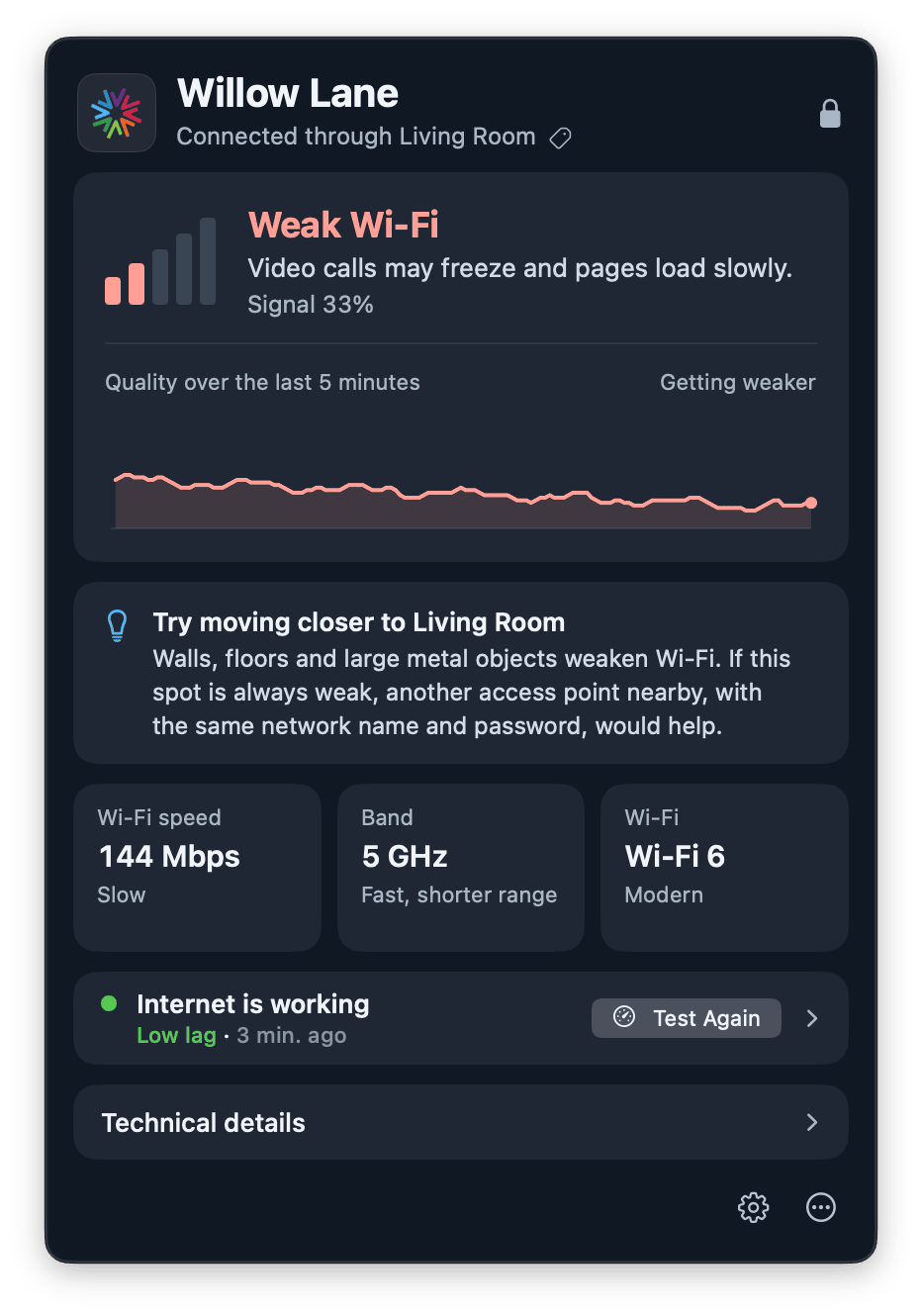
A weak signal that's getting weaker, with a tip to move closer to the access point.
Wi‑Fi speed, band, and generation
Three tiles below the rating describe the connection, each with a short note:
Your Mac chooses the band itself. On a network that uses one name for all its bands, as Apple recommends, you don’t need to pick one.
The Wi‑Fi speed changes often: your Mac adjusts it all the time to suit the signal and interference. It’s the speed of the link to the access point, not your Internet speed, and the data you actually get is always lower. To measure your Internet speed, run the Internet test.
Technical details
Click Technical details to see the signal strength and background noise, always in dBm, the channel and its width, the security, the BSSID, and the IP address. The BSSID identifies the access point radio your Mac is connected to; an access point usually has one for each band and network name. When the access point’s maker is known, it appears under the BSSID; click it to open the maker’s website. Click the copy button beside the BSSID or IP address to copy it. To share the details with someone helping you with your network, click Copy All Details. It copies these details and more, one per line: the network and access point names, the access point’s maker, the SNR, the band, the Wi‑Fi standard, the link speed, the MCS index and spatial streams, the Internet status, and the results of the last Internet test.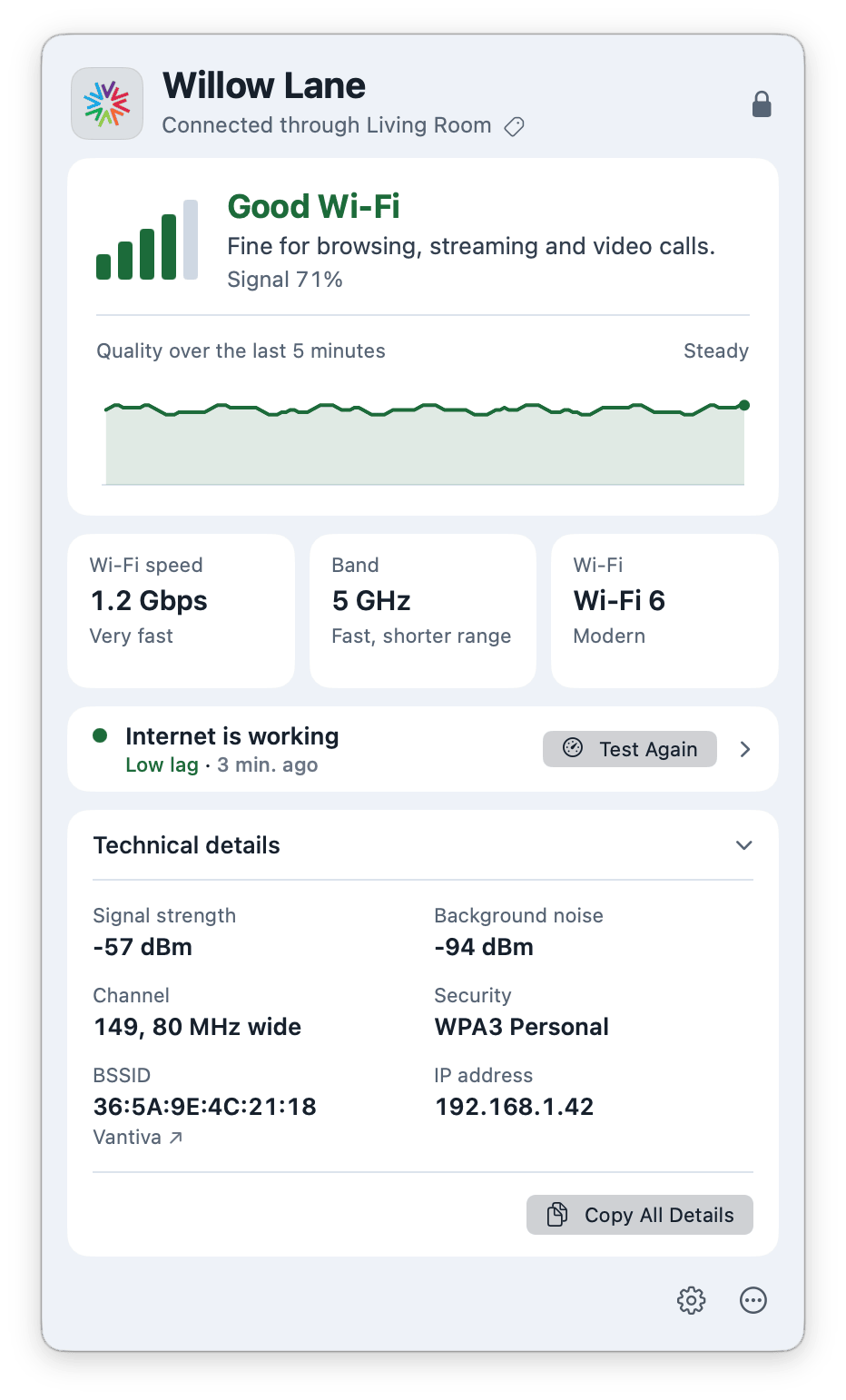
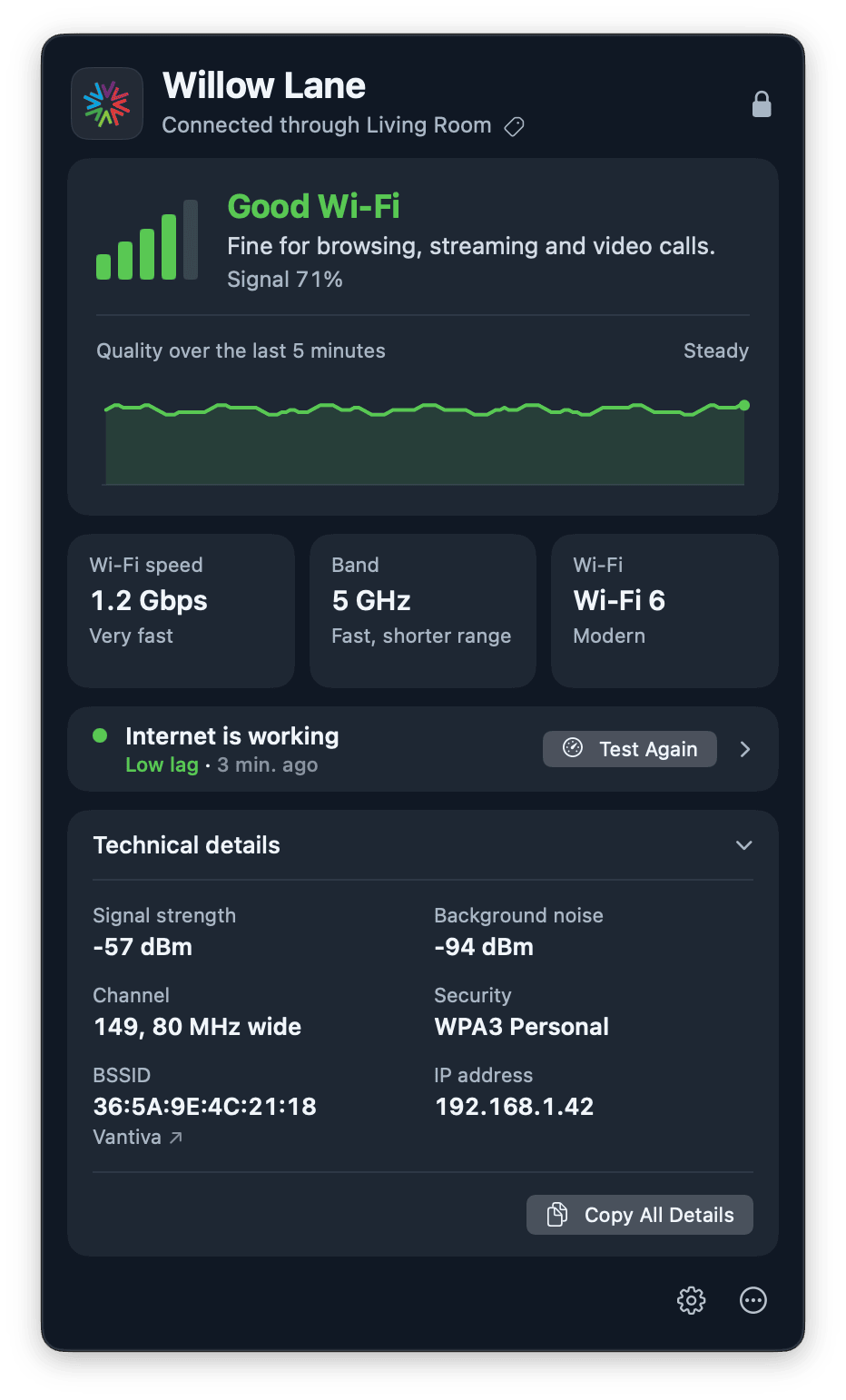
Technical details for the connection, with Copy All Details at the bottom.
The Internet test and the technical details take turns: opening one closes the other.