

When a problem is confirmed, WiFi Signal Pro also puts a dot on its menu bar signal indicator, at the same time as the Internet row shows the problem, so you can see it without opening the popover.
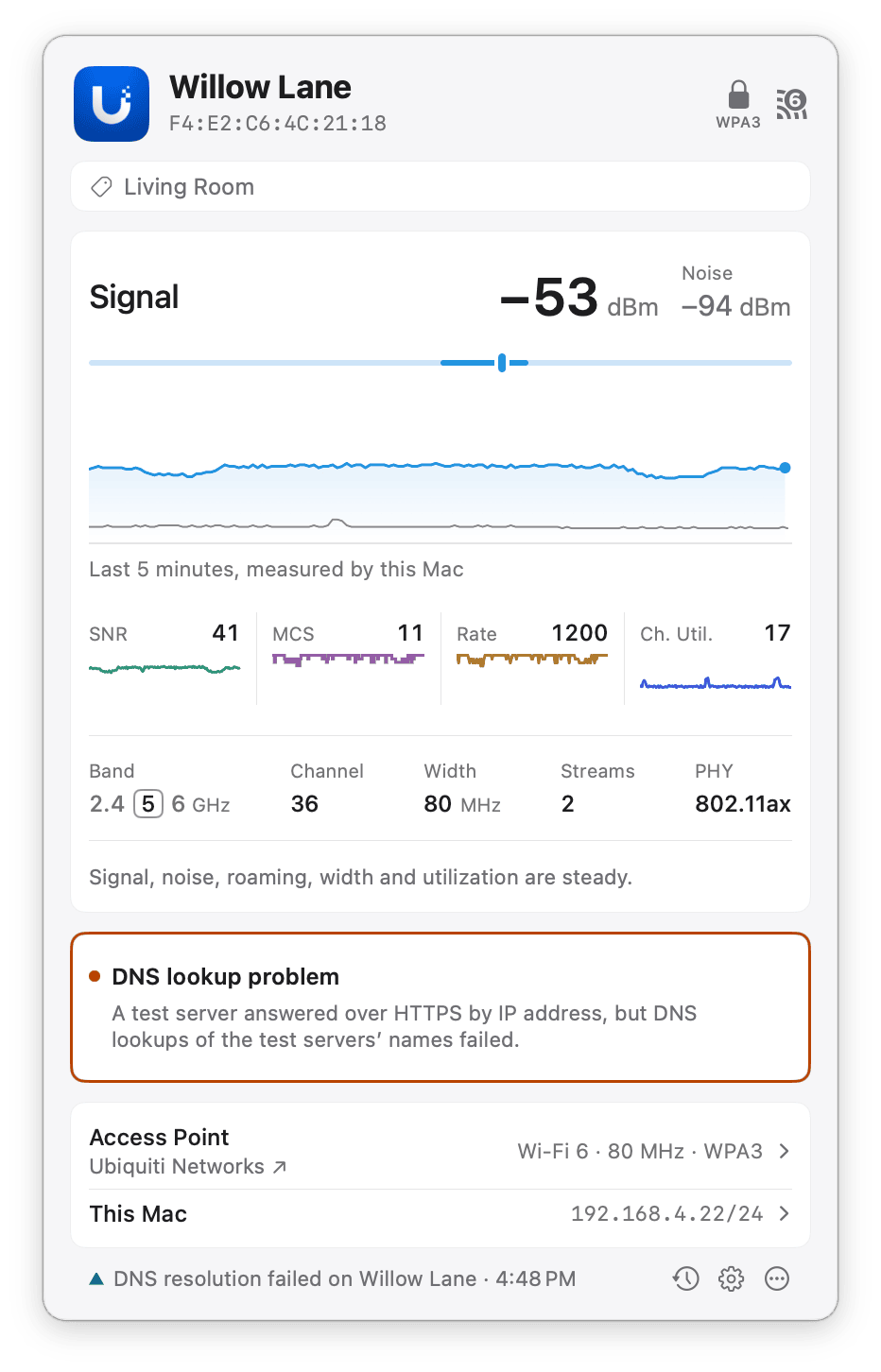
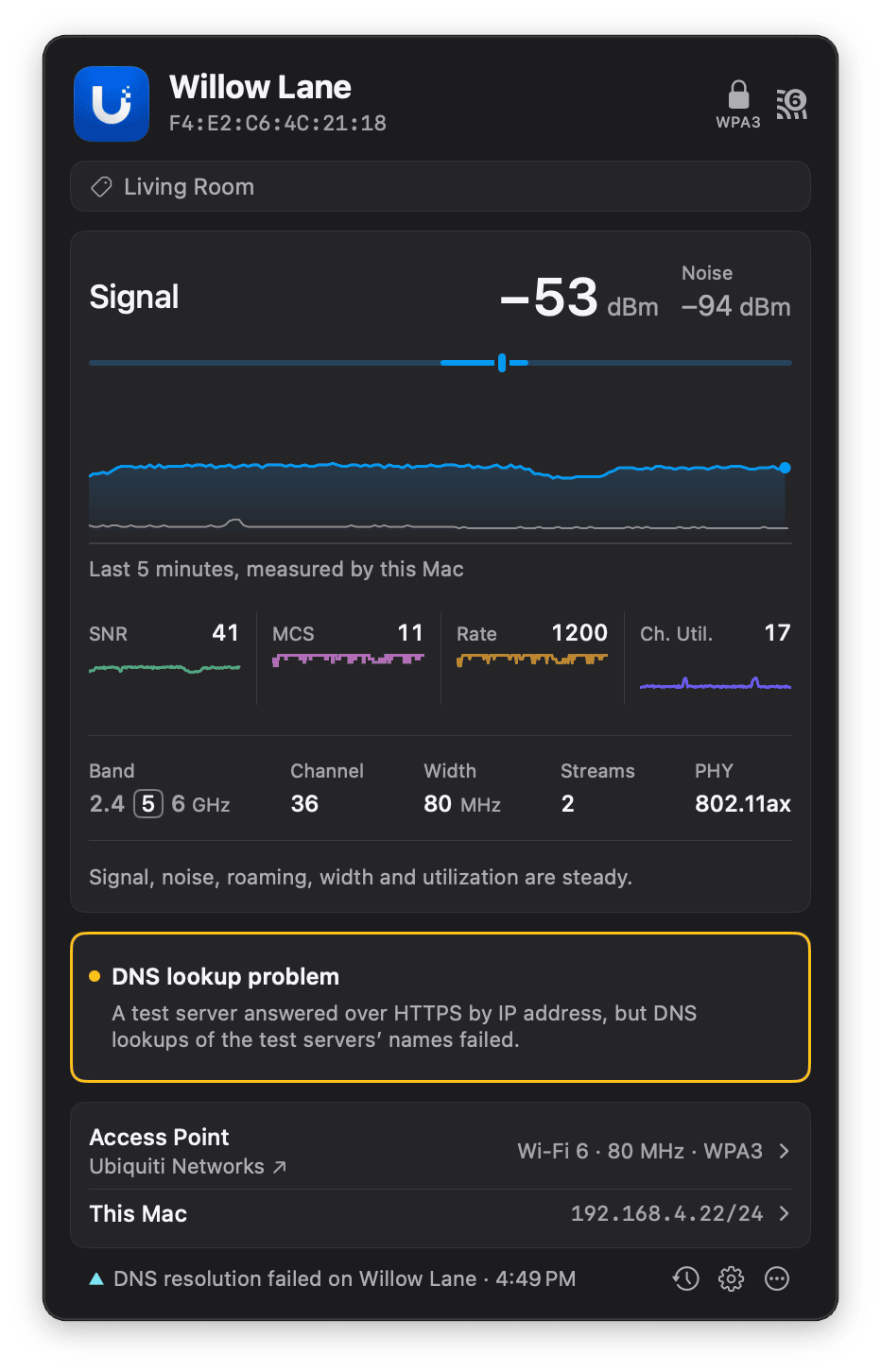
A good Wi-Fi connection with a DNS lookup problem.
Test throughput and responsiveness
To measure how your Internet connection performs while it’s busy:- Open the WiFi Signal Pro popover.
- In the Internet row under the charts, click Run Test. The button is available while the status is Connected to the Internet. While the status is Checking Internet connection…, the button is shown but dimmed.
- Wait for the test to finish. It measures idle latency first, then downloads, then uploads. Each transfer runs for up to 12 seconds.
The test runs directly over Wi-Fi, bypassing your VPN. When a VPN is detected, a message under the test explains this. Its results can differ from the automatic connectivity checks, which use your Mac’s current Internet connection.
IPv4 and IPv6
The test uses IPv4 or IPv6 automatically, with no setting to change. All measurements in a result describe the selected connection to the test server. When a completed test used the other family after connection timeouts, failures, or repeated delays, a message below the result explains what happened. The test does not otherwise display the address family. A good result on the measured path does not establish that the other family, or every Internet service, works well. If the test cannot obtain a valid measurement, it ends incomplete. Putting the Mac to sleep stops a running test.Read the results
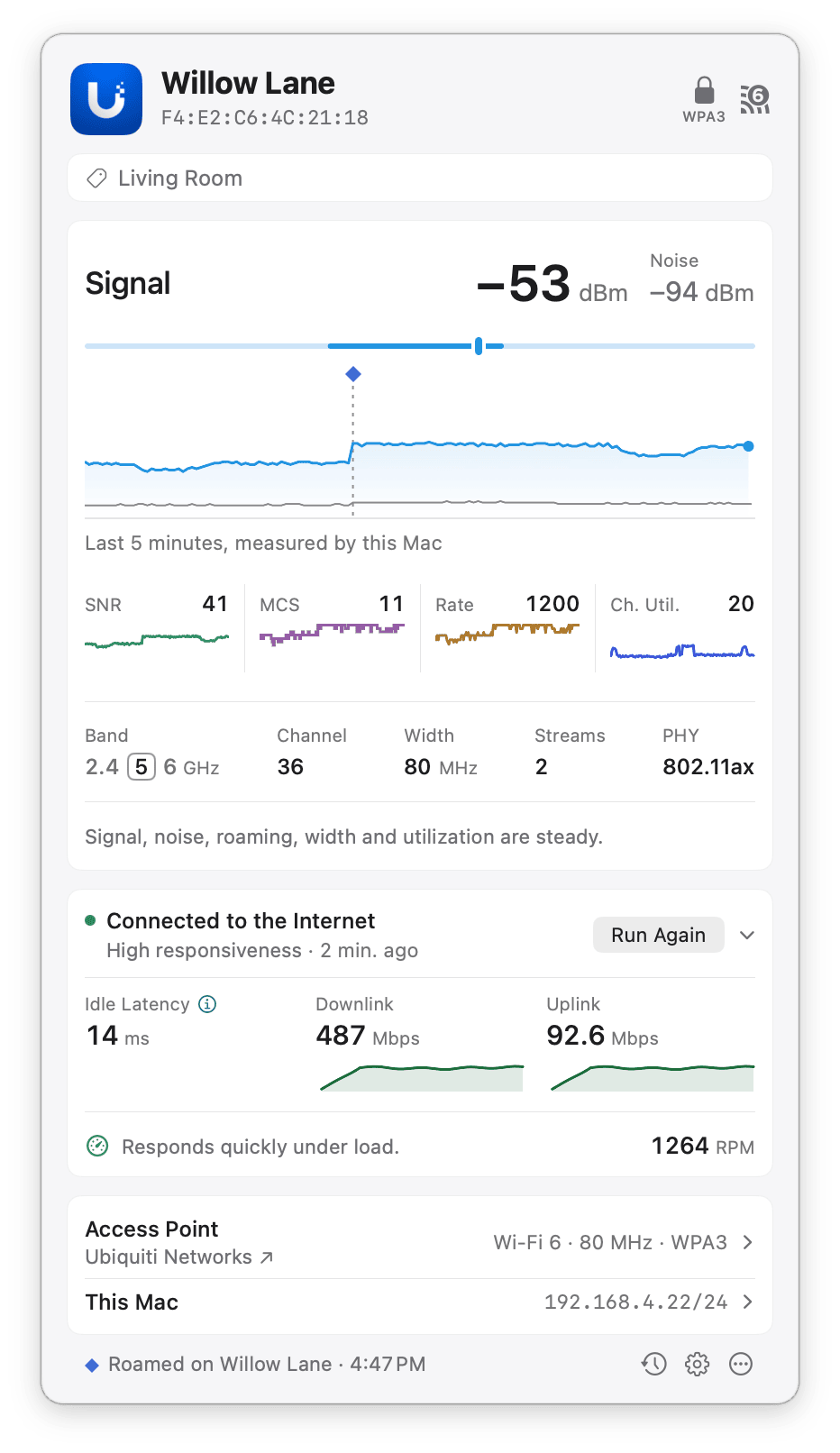
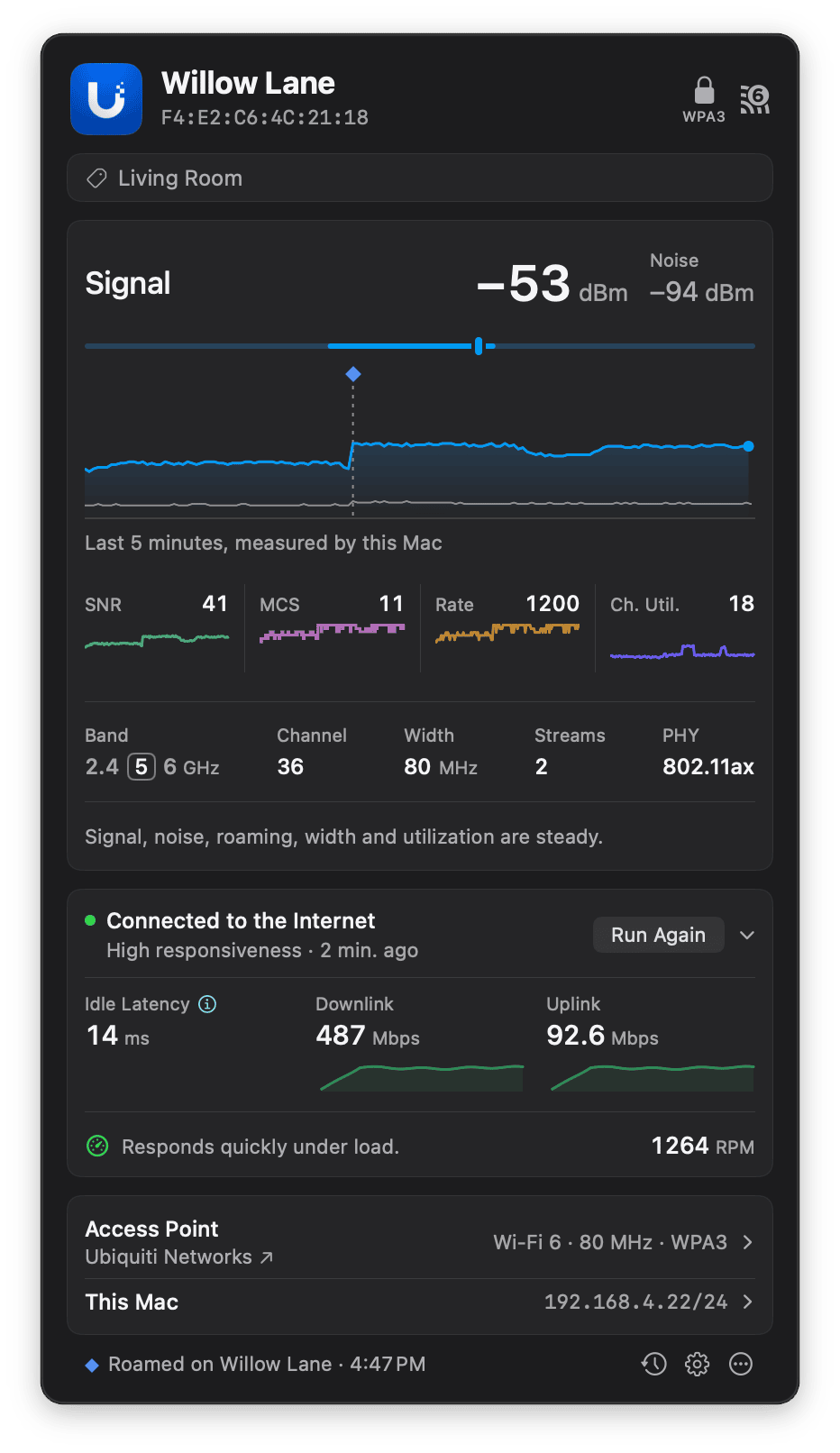
The results of an Internet test finished two minutes ago.
Idle latency appears as soon as it’s measured, and the download result settles while the upload is still running. Throughput is the amount of data transferred per second; it differs from the Wi-Fi transmit rate in the connection readout.
The test measures responsiveness separately during the download and upload and rates the connection on the lower of the two values. When the test finishes, its summary and RPM appear below the measurements and charts. The measurements and charts stay in place.
Move the pointer over the RPM to see the RPM measured in each direction. Move the pointer over the summary sentence to see the RPM range of each rating.
A connection can have high throughput and low responsiveness: large transfers finish quickly, but calls, games, and other interactive activity can respond slowly while the connection is busy.
The Internet row shows the last rating and how long ago it was measured. Click the row to expand or collapse the details, or click Run Again for a new test. The result is cleared from the popover after 30 minutes, if an Internet problem is confirmed, or if your Mac joins a different network. Each test is also recorded in History, with its measurements if it finished.
If the test finishes while the popover is closed, WiFi Signal Pro sends a notification, provided notifications are allowed in macOS. Click it to open the result.
If the test says Test incomplete, wait a moment and click Run Again. The incomplete-test message clears automatically after five minutes, and the expanded Internet section closes.