

Set up the menu bar display
- Click the WiFi Signal Pro item in the menu bar, then click the gear icon.
- Click Menu Bar.
- Click in Line 1 or Line 2.
- Click a value in the list below to insert it, or drag it into place. Type any text you want around the values.
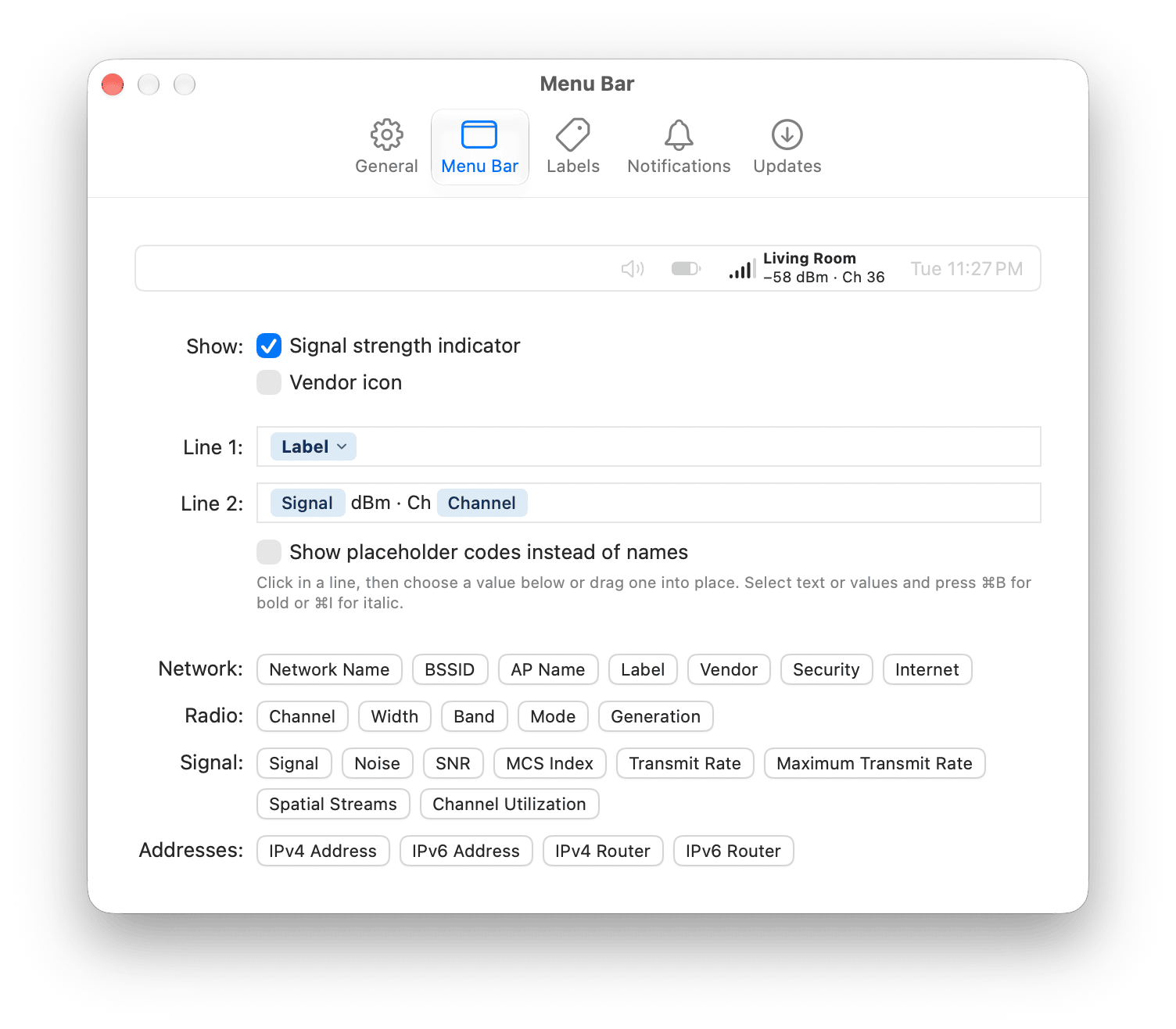
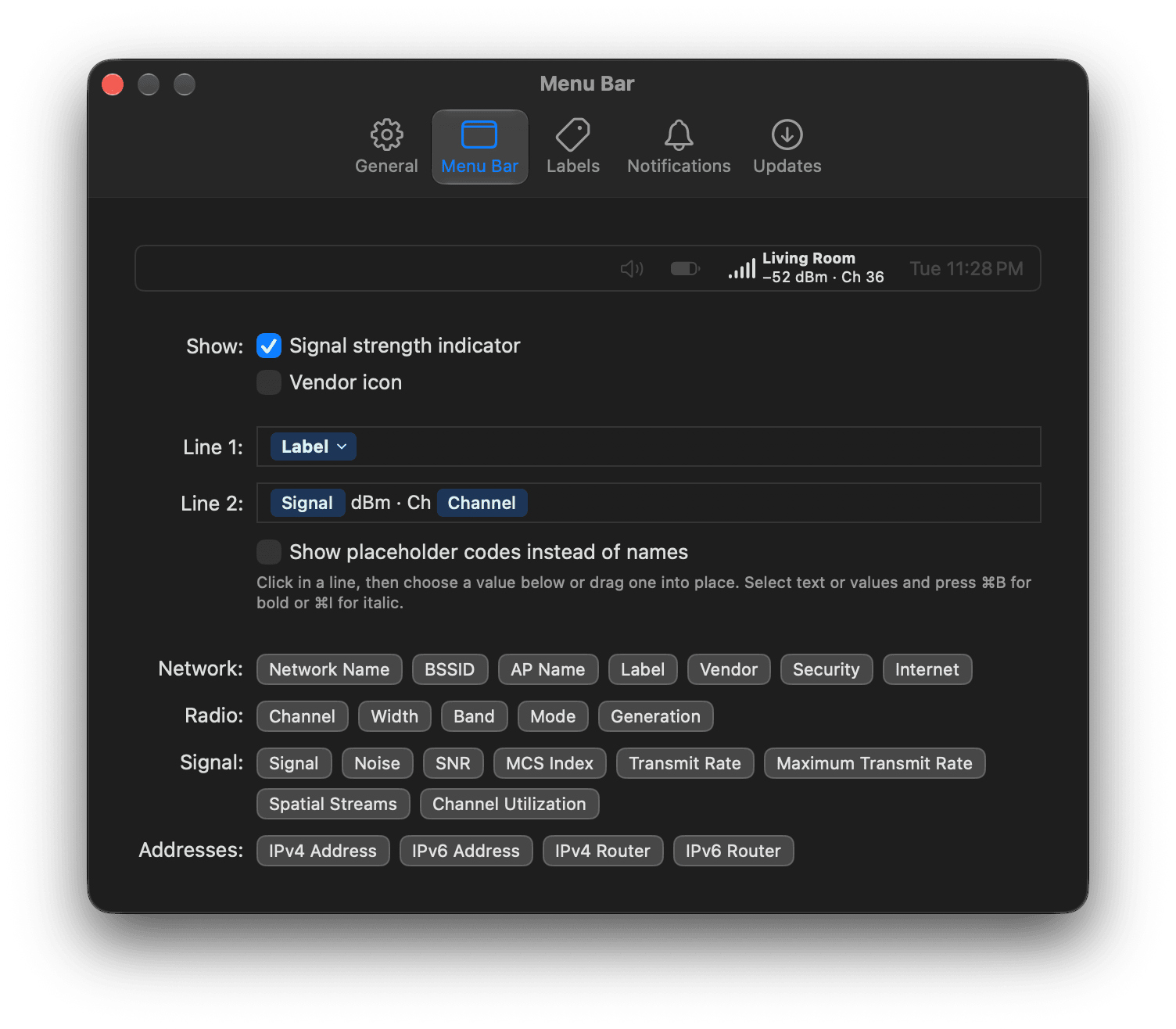
Line 1 shows the label in bold; line 2 shows the signal strength and channel with text around them.
Style text
Select text or values in a line and press Command-B for bold or Command-I for italic. You can also Control-click a selection and choose Bold or Italic.Show part of a value
For values such as the network name, BSSID, AP name, label, vendor, and addresses, you can show just part of the value, for example the last three octets of a BSSID.- Click the arrow on the value in the line, or Control-click the value and choose Edit Value…
- Drag across the characters you want to keep.
Show something else when a value is unavailable
Some values aren’t available on every network. Many access points don’t advertise a name, for example, an access point has no label until you give it one, and for a few seconds after your Mac moves to another access point there’s no transmit rate. By default, WiFi Signal Pro leaves an unavailable value out of the line. You can instead choose what to show in its place.- Click the arrow on the value in the line, or Control-click the value and choose Edit Value…
- Under If unavailable, show, click Add and choose another value, or choose Text and type the text to show, such as
—. - Add more values if you want. WiFi Signal Pro shows the first one in the list that’s available. Drag a row by its handle to change the order, or click the minus icon to remove it.
Values that every reading has, such as the network name, BSSID, channel, and signal, don’t offer this option.
Values
Values are shown without units, so add the units you want as text, for example
%S dBm.
Channel Utilization is empty unless WiFi Signal Pro Extended Metrics is installed. See Measure channel utilization. Maximum Transmit Rate is the highest transmit rate this connection can reach as it stands, given its generation, band, channel width, and spatial streams, and is empty when that isn’t known.
Edit codes directly
If you prefer to type, select Show placeholder codes instead of names. Each line then shows the codes from the table above as plain text.- To make text bold, surround it with
**. To make it italic, surround it with_. - To show part of a value, add
[start:stop]after its code, wherestartis the zero-based index of the first character andstopis the index after the last one. Leave outstartto begin at the first character, orstopto continue to the end. Negative numbers count from the end. - To show something else when a value is unavailable, add the alternatives in braces after its code and any
[start:stop], separated by|. Each alternative can have its own[start:stop]. The first one that’s available is shown. For example,%A{%L|%B[-5:]|—}shows the AP name, or else the label, or else the last five characters of the BSSID, or else—.