

Connection header
The top of the popover shows the network name (SSID), the BSSID of the access point your Mac is connected to, and, if the access point advertises one, its name. Beside them are an icon if the network is a Personal Hotspot or uses Passpoint, a lock with the security mode under it, and a badge with the Wi-Fi generation, for example Wi-Fi 6. The lock is marked “1X” on networks that use 802.1X, and doesn’t appear on open networks. Hold the pointer over an icon to see what it means. If you’ve given the access point a label, it appears on a row of its own under the header. See Use labels. Under the charts, the Band column lists the frequency bands the network is available on. The band your Mac is using is outlined, and the others are dimmed. The list depends on the information available from macOS, so a band that isn’t listed may still be available.Connection summary
At the bottom of the Wi-Fi card, under the channel and PHY details, a short summary points out the most important condition WiFi Signal Pro has noticed in recent readings. For example:- A recent drop in signal strength on the current access point.
- A rise in the noise floor on the current channel.
- Repeated roaming between two access points with little difference in signal strength.
- A roam to an access point with weaker signal strength than the previous one.
- A busy channel, when WiFi Signal Pro Extended Metrics is installed. The summary also says when it estimates that most of the activity is this Mac’s own traffic. See Measure channel utilization.
- A regulatory domain mismatch, when your Mac and the access point report different countries.
- A narrower channel width than both your Mac and the access point support.
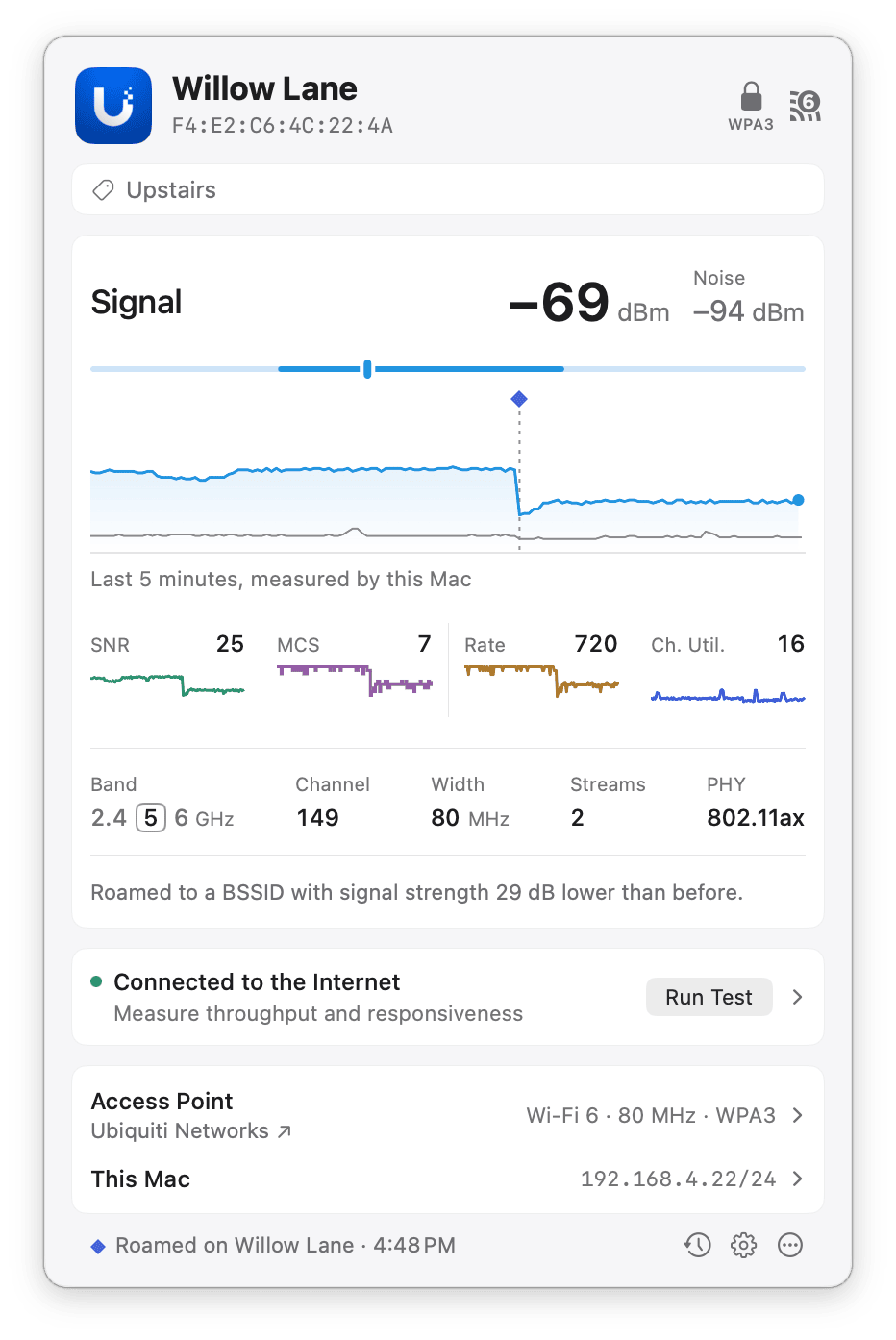
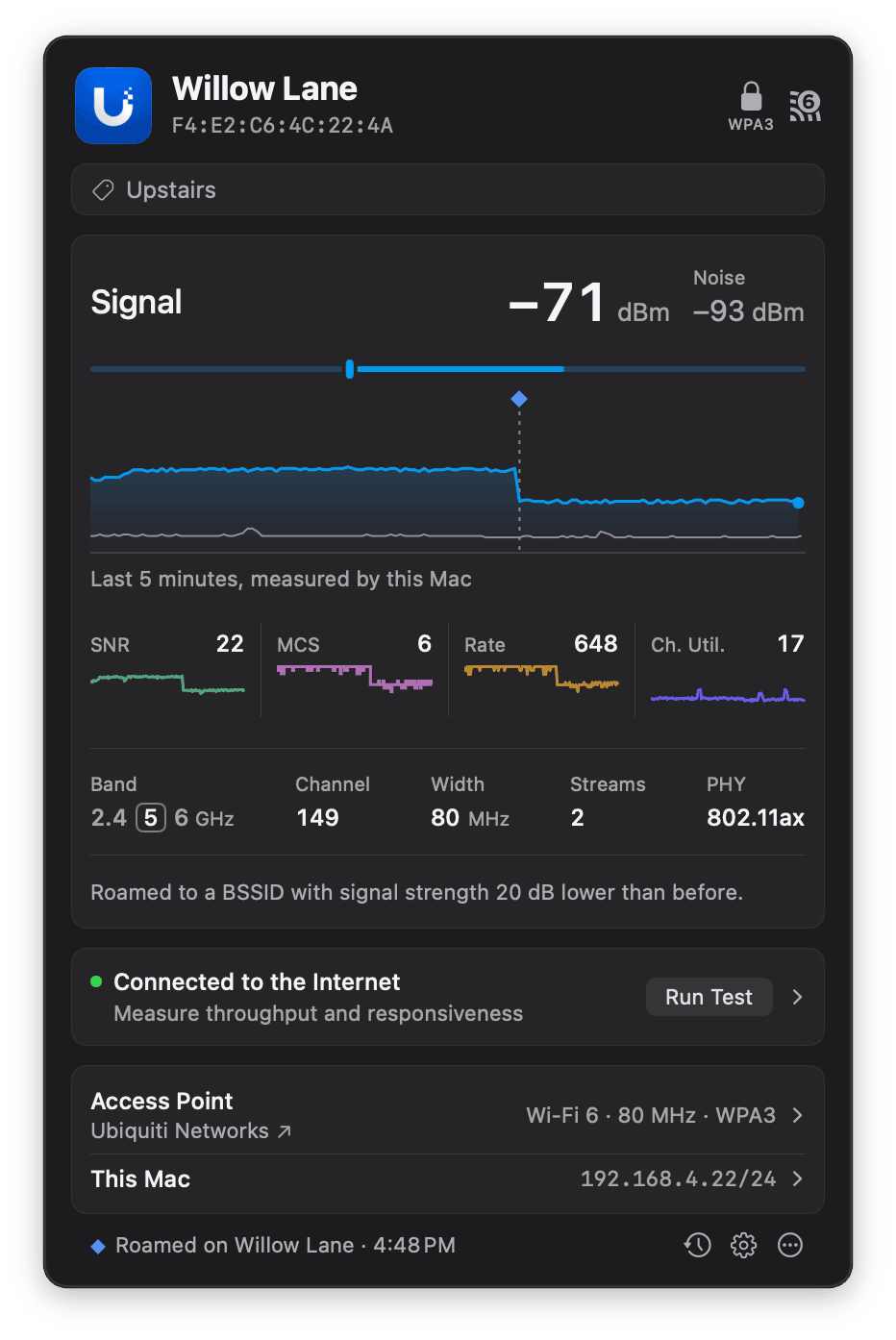
The summary pointing out a recent roam to an access point with weaker signal strength.
Internet status
The Internet row under the charts shows whether your Mac can reach the Internet. When a problem is confirmed, the row is outlined and explains what failed. When connected, click Run Test to measure download and upload throughput, idle latency, and responsiveness under load. See Check Internet connectivity.Detail sections
The sections at the bottom of the popover hold more detail. Click a section to open it. Only one section is open at a time, so the popover stays a manageable size.The Access Point section says Retrieving… while WiFi Signal Pro looks up what the access point advertises, and Unavailable if macOS doesn’t have that information.
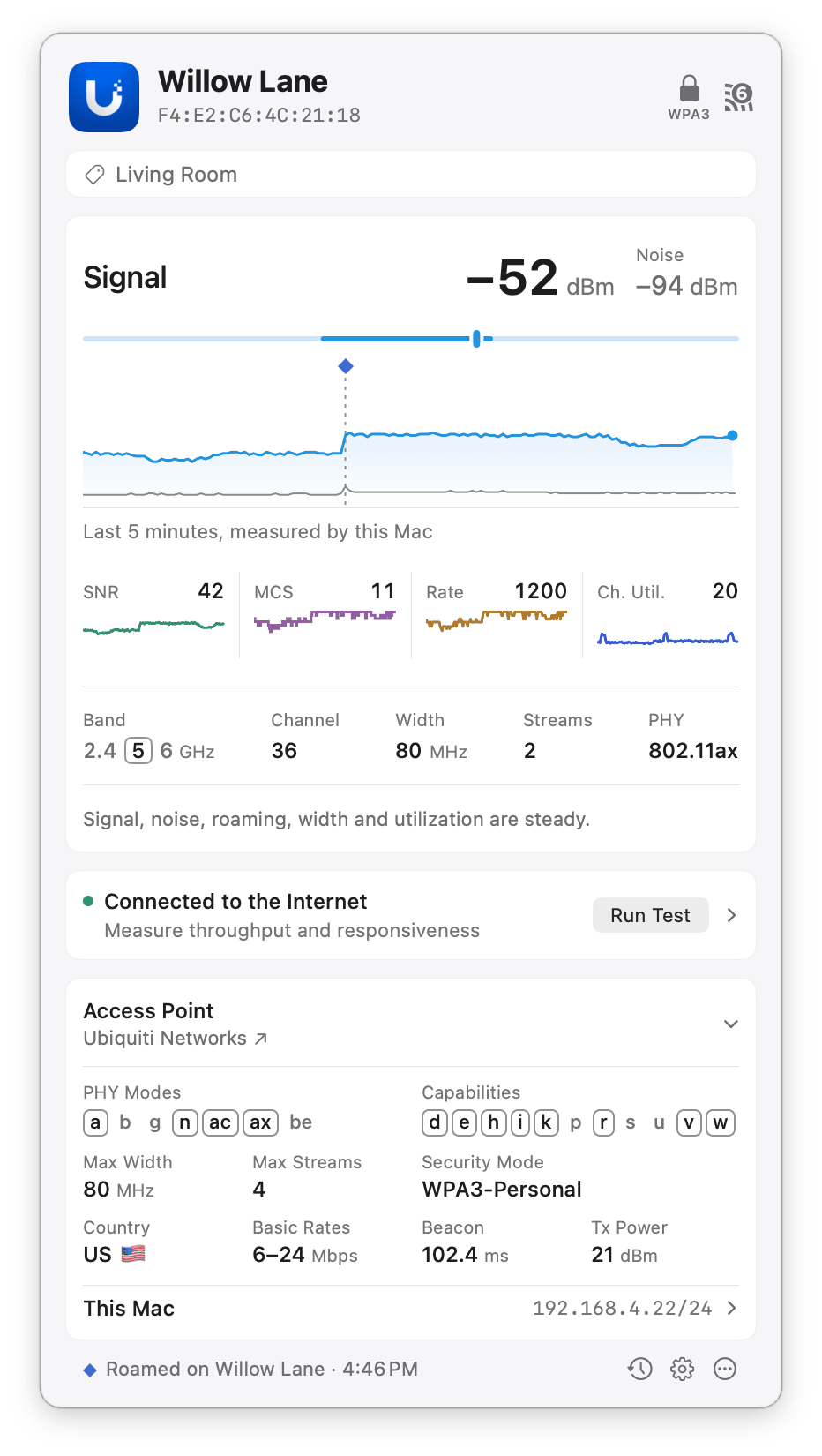
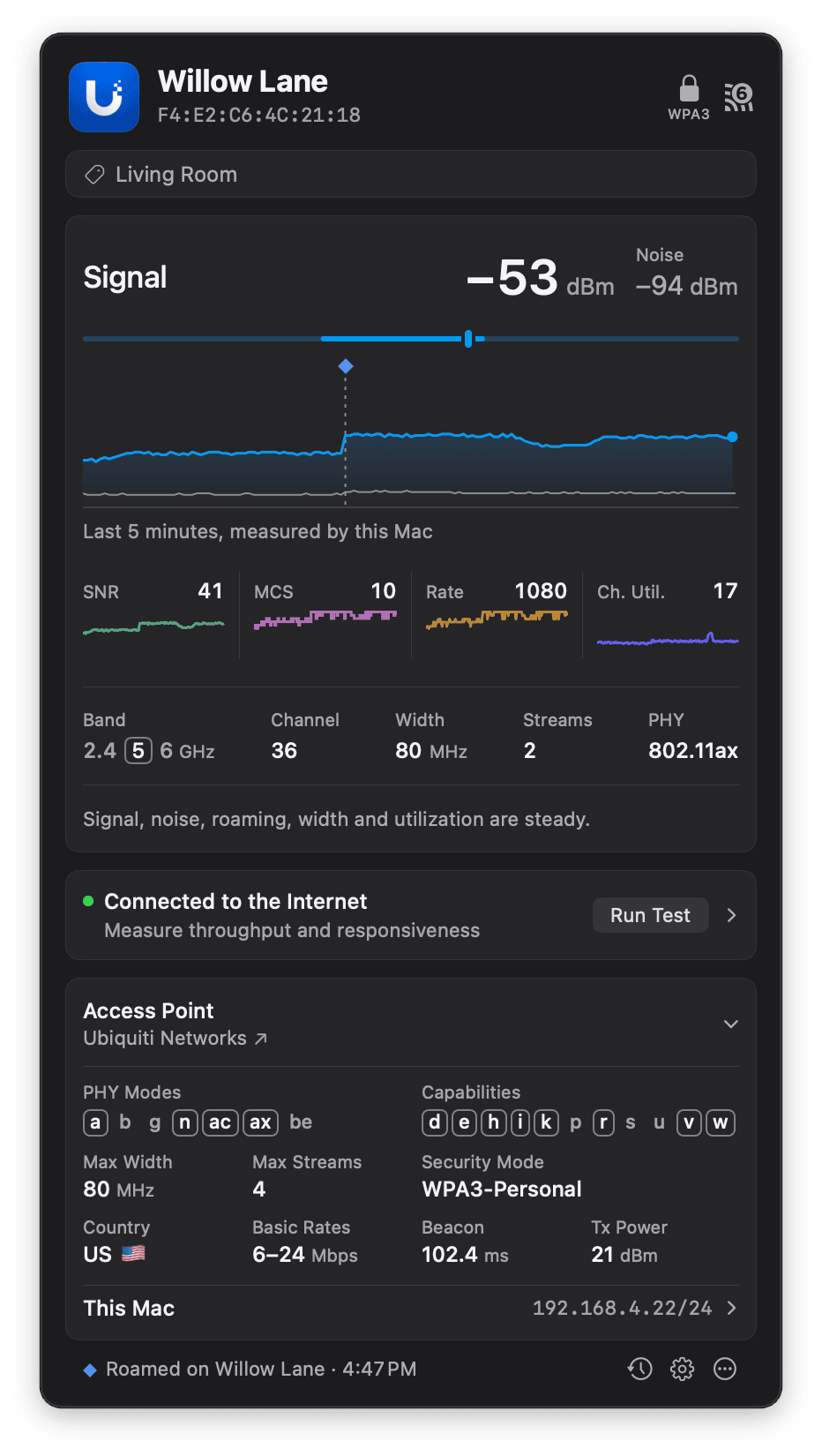
The Access Point section open, with the vendor under its title.
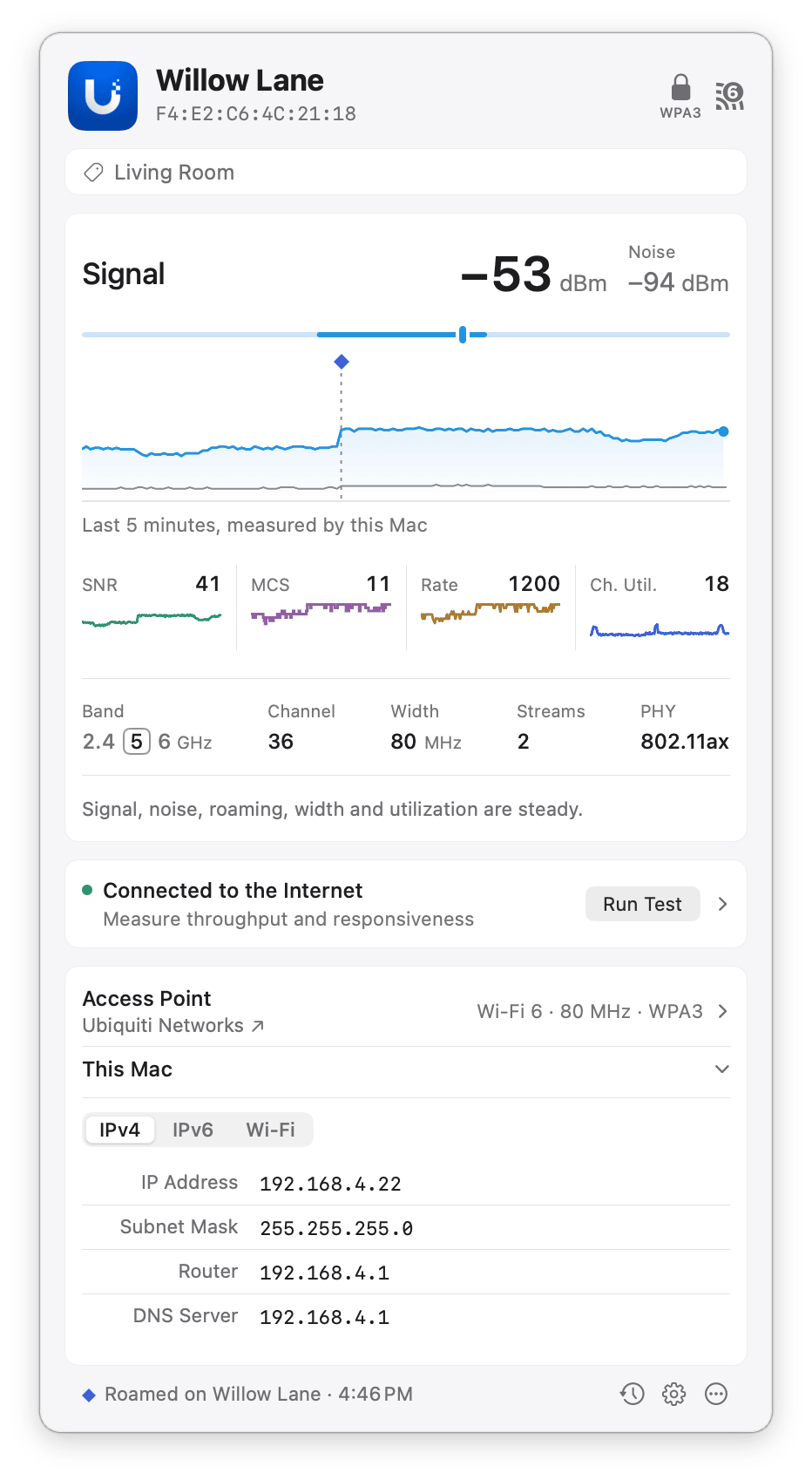
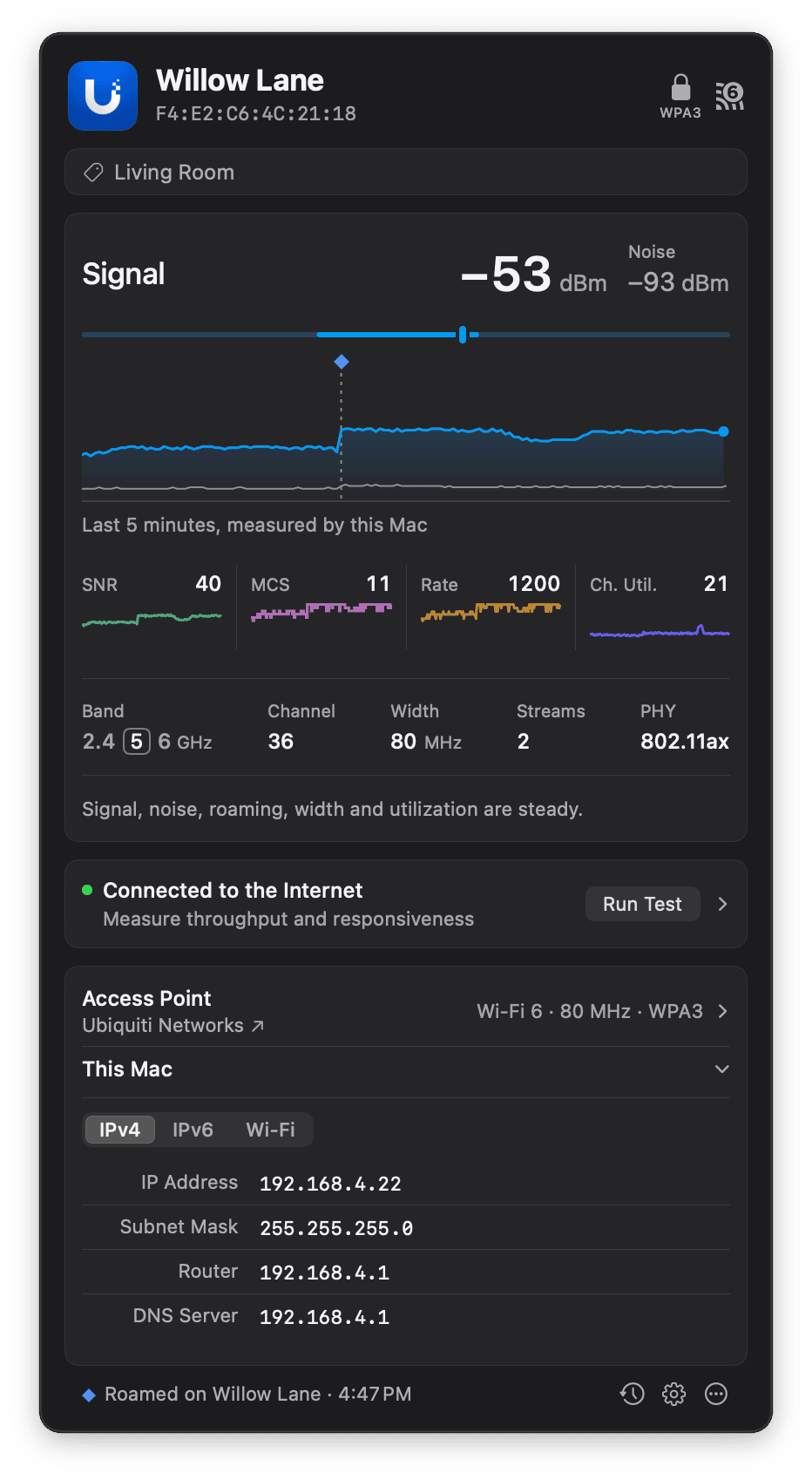
The This Mac section open, with the Mac's addresses.